Introduction
Terminal emulators are software tools that let users interact with operating systems, servers, shells, command-line tools, development environments, and remote systems through a text-based interface. In simple words, a terminal emulator gives developers, system administrators, DevOps engineers, and power users a place to run commands, manage files, connect to servers, automate tasks, and control software environments.
Terminal emulators matter because modern engineering work still depends heavily on the command line. Even with graphical dashboards and cloud consoles, serious development, debugging, deployment, monitoring, scripting, and infrastructure work often happens inside a terminal. A good terminal emulator improves speed, readability, workflow control, remote access, session management, and productivity.
Common use cases include software development, SSH access, DevOps automation, Kubernetes management, cloud CLI usage, Git workflows, database administration, log monitoring, scripting, and remote troubleshooting.
Buyers and users should evaluate:
- Cross-platform support
- Shell compatibility
- Performance and responsiveness
- Tabs, panes, and session management
- SSH and remote workflow support
- Customization and themes
- Unicode and font rendering
- Plugin or extension ecosystem
- Security controls
- Team and enterprise suitability
Best for: Developers, DevOps engineers, SRE teams, cloud engineers, cybersecurity teams, database administrators, IT teams, and technical power users.
Not ideal for: Non-technical users who do not use command-line tools, teams that only need browser-based admin panels, or organizations with highly locked-down desktop environments where terminal customization is restricted.
Key Trends in Terminal Emulators
- GPU-accelerated rendering is becoming more common for faster output, smoother scrolling, and better handling of large logs.
- AI-assisted terminal workflows are growing, especially for command suggestions, error explanation, and shell productivity.
- Cross-platform consistency is now important, as teams work across Windows, macOS, Linux, containers, and cloud environments.
- Remote development workflows are increasing, making SSH, multiplexing, and persistent sessions more valuable.
- Tabbed and split-pane interfaces are now expected, especially for developers managing multiple servers or projects.
- Security expectations are rising, including safer paste handling, profile isolation, SSH key workflows, and enterprise policy controls.
- Better font and Unicode support matters more, especially for modern prompts, icons, multilingual output, and developer themes.
- Integration with IDEs and DevOps tools is increasing, including Git, Kubernetes, Docker, cloud CLIs, and scripting tools.
- Open-source terminal emulators remain popular, but enterprises may prefer tools with commercial support and management options.
- Custom workflows are replacing default terminals, as developers choose tools that match their shell, theme, shortcuts, and productivity style.
How We Selected These Tools
- Chose terminal emulators with strong developer adoption and practical real-world usage.
- Included tools for Windows, macOS, Linux, cross-platform workflows, and remote administration.
- Prioritized feature completeness, performance, customization, and workflow productivity.
- Considered tools suitable for individual developers, SMBs, and enterprise teams.
- Evaluated SSH support, tabs, panes, profiles, themes, and scripting capabilities.
- Considered documentation quality, community strength, and long-term relevance.
- Included both modern GPU-focused tools and mature enterprise-friendly options.
- Avoided unsupported public ratings and uncertain compliance claims.
- Focused on practical fit rather than declaring one universal winner.
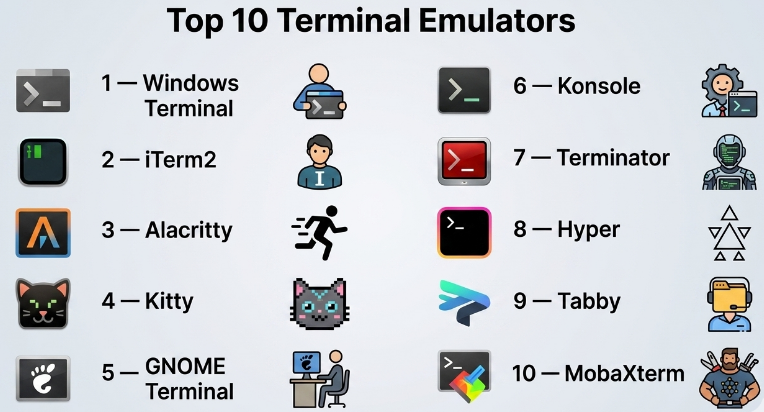
Top 10 Terminal Emulators
#1 — Windows Terminal
Short description :
Windows Terminal is a modern terminal emulator designed for Windows users who work with PowerShell, Command Prompt, WSL, Azure CLI, Git Bash, and other shells.
It provides tabs, panes, profiles, themes, GPU-accelerated text rendering, and strong integration with Windows development workflows.It is especially useful for developers and administrators working in Windows-first environments.Windows Terminal makes it easier to manage multiple shells from one clean interface.It is a strong option for teams using Windows laptops, cloud tools, DevOps scripts, and Linux through WSL.Its strongest value appears when users need a modern replacement for older command-line windows.
Key Features
- Multiple tabs and split panes
- Profile support for different shells
- Custom themes and color schemes
- GPU-accelerated text rendering
- WSL integration
- PowerShell and Command Prompt support
- JSON-based configuration options
Pros
- Strong Windows ecosystem integration
- Clean interface for multiple shells
- Good choice for developers using WSL and cloud CLIs
Cons
- Mainly focused on Windows users
- Advanced customization may require configuration knowledge
- Not ideal for teams needing native macOS or Linux terminal consistency
Platforms / Deployment
Windows
Self-hosted / Local desktop
Security & Compliance
Security depends on Windows user permissions, shell configuration, SSH setup, and enterprise endpoint policies. SSO/SAML, SOC 2, ISO 27001, HIPAA: Not publicly stated for the terminal emulator itself.
Integrations & Ecosystem
Windows Terminal fits naturally into Windows development and administration workflows.
- PowerShell
- Command Prompt
- WSL
- Azure CLI
- Git Bash
- SSH clients
Support & Community
Windows Terminal has strong documentation and active community usage. Support generally comes through Microsoft ecosystem resources, developer communities, and enterprise Windows administration channels.
#2 — iTerm2
Short description :
iTerm2 is a popular terminal emulator for macOS users who need more power than the default Terminal app.It is widely used by developers, DevOps engineers, platform engineers, and technical power users.
iTerm2 offers split panes, profiles, search, hotkeys, advanced customization, and strong shell workflow support.It is especially useful for users who spend long hours in the terminal and need flexible control.
Its macOS-focused design makes it a favorite among Apple-based engineering teams.
However, it is not available as a native Windows or Linux terminal.
Key Features
- Split panes and tabs
- Searchable terminal history
- Hotkey window support
- Profile-based configuration
- Custom themes and fonts
- Shell integration features
- Advanced paste and session options
Pros
- Excellent choice for macOS developers
- Highly customizable interface
- Strong productivity features for heavy terminal users
Cons
- macOS-only tool
- Can feel feature-heavy for beginners
- Some advanced features require setup and tuning
Platforms / Deployment
macOS
Self-hosted / Local desktop
Security & Compliance
Security depends on macOS controls, SSH key management, shell configuration, and enterprise device policies. SOC 2, ISO 27001, HIPAA: Not publicly stated.
Integrations & Ecosystem
iTerm2 works well with common macOS developer workflows.
- zsh and bash
- SSH workflows
- Git
- tmux
- Homebrew tools
- Cloud and Kubernetes CLIs
Support & Community
iTerm2 has strong community usage, detailed documentation, and many tutorials. Support is mainly community-driven.
#3 — Alacritty
Short description :
Alacritty is a fast, GPU-accelerated terminal emulator focused on performance and simplicity.
It is designed for users who want a lightweight terminal without heavy built-in features.
Developers who prefer speed, keyboard-driven workflows, and external tools often like Alacritty.
It does not try to include every feature inside the terminal itself.Instead, it focuses on clean rendering and lets users combine it with tools like tmux.It is a good choice for performance-conscious users across macOS, Linux, and Windows.
Key Features
- GPU-accelerated rendering
- Cross-platform support
- Lightweight design
- Keyboard-focused workflow
- Configuration through text files
- Strong performance for large outputs
- Works well with terminal multiplexers
Pros
- Very fast and responsive
- Clean and minimal design
- Good for users who prefer simple tools
Cons
- Fewer built-in productivity features
- Requires external tools for tabs and panes
- Configuration may not feel beginner-friendly
Platforms / Deployment
Windows / macOS / Linux
Self-hosted / Local desktop
Security & Compliance
Security depends on the local system, shell, SSH setup, and user configuration. SOC 2, ISO 27001, HIPAA: Not publicly stated.
Integrations & Ecosystem
Alacritty works well in lightweight and keyboard-driven development environments.
- tmux
- zsh and bash
- Git
- SSH
- Vim and Neovim
- Linux desktop environments
Support & Community
Alacritty has strong open-source community support and clear documentation. Formal enterprise support is not publicly stated.
#4 — Kitty
Short description :
Kitty is a fast, GPU-based terminal emulator with strong customization and advanced terminal features.
It is designed for developers who want both performance and deeper workflow control.
Kitty supports tabs, layouts, keyboard shortcuts, image display, and scripting features.
It is popular among Linux and macOS users who like highly configurable terminal environments.
It can be a strong alternative to minimal terminals when users want more built-in capabilities.
However, its advanced feature set may require learning time.
Key Features
- GPU-accelerated rendering
- Tabs and window layouts
- Keyboard-driven control
- Image display support
- Extensive configuration options
- Remote control features
- Good Unicode and font rendering
Pros
- Strong balance of speed and features
- Highly customizable
- Good for advanced terminal users
Cons
- Configuration can feel complex
- Not as beginner-friendly as simpler terminals
- Workflow style may not suit every team
Platforms / Deployment
macOS / Linux
Self-hosted / Local desktop
Security & Compliance
Security depends on system permissions, shell configuration, remote access setup, and user policies. SOC 2, ISO 27001, HIPAA: Not publicly stated.
Integrations & Ecosystem
Kitty works well with advanced developer tooling and keyboard-based workflows.
- zsh and bash
- tmux alternatives
- SSH
- Vim and Neovim
- Git
- Linux desktop workflows
Support & Community
Kitty has strong documentation and an active technical community. Enterprise support is not publicly stated.
#5 — GNOME Terminal
Short description :
GNOME Terminal is a widely used terminal emulator for Linux desktop environments, especially GNOME-based systems.It provides a stable, familiar interface for Linux users who need shell access, SSH, scripting, and system administration.It is often available by default on many Linux distributions.
GNOME Terminal is best for users who want a straightforward terminal without excessive configuration.
It is reliable for daily Linux command-line work.However, users wanting advanced GPU rendering or deep customization may prefer newer alternatives.
Key Features
- Tabs and profiles
- Linux desktop integration
- Shell access and command execution
- Custom fonts and color schemes
- Scrollback support
- Keyboard shortcuts
- Stable daily terminal usage
Pros
- Familiar and reliable for Linux users
- Simple enough for beginners
- Good integration with GNOME desktop environments
Cons
- Less modern than GPU-focused terminals
- Limited advanced workflow features
- Mostly Linux-focused
Platforms / Deployment
Linux
Self-hosted / Local desktop
Security & Compliance
Security depends on Linux permissions, shell access, SSH configuration, and system policies. SOC 2, ISO 27001, HIPAA: Not publicly stated.
Integrations & Ecosystem
GNOME Terminal fits naturally into Linux desktop workflows.
- bash and zsh
- SSH
- Linux package managers
- Git
- System administration tools
- Desktop shortcuts
Support & Community
GNOME Terminal benefits from the broader GNOME and Linux community. Documentation and support are generally community-driven.
#6 — Konsole
Short description :
Konsole is a powerful terminal emulator commonly associated with KDE desktop environments.
It is suitable for Linux users who want a feature-rich terminal with tabs, profiles, split views, and strong desktop integration.Konsole is popular among Linux developers, administrators, and power users.
It offers more built-in workflow features than many basic terminals.
It is a good choice for users already working in KDE environments.
For non-KDE users, some interface choices may feel less natural.
Key Features
- Tabs and split views
- Profile management
- KDE desktop integration
- Custom color schemes
- Search and scrollback support
- Session management features
- Keyboard shortcut customization
Pros
- Strong feature set for Linux users
- Good fit for KDE environments
- Useful for multitasking in terminal sessions
Cons
- Mostly Linux-focused
- Best experience is within KDE
- May feel heavier than minimal terminals
Platforms / Deployment
Linux
Self-hosted / Local desktop
Security & Compliance
Security depends on the Linux system, shell permissions, SSH practices, and endpoint policies. SOC 2, ISO 27001, HIPAA: Not publicly stated.
Integrations & Ecosystem
Konsole works well across Linux and KDE-based technical workflows.
- bash and zsh
- SSH
- KDE applications
- Git
- Linux admin tools
- Development scripts
Support & Community
Konsole has strong KDE community support and documentation. Enterprise support depends on the Linux distribution and desktop environment used.
#7 — Terminator
Short description :
Terminator is a Linux terminal emulator known for its split-screen layout and multi-terminal workflow.
It is useful for administrators, DevOps engineers, and developers who need to monitor multiple sessions at once.Users can arrange terminals in grids, run commands in different panes, and work across several contexts.It is especially helpful for server monitoring, log review, and parallel command execution.
Terminator is practical for users who value layout control over visual polish.
However, it may feel less modern than newer GPU-accelerated options.
Key Features
- Multiple terminal panes
- Grid-based layouts
- Tabs and profiles
- Keyboard shortcuts
- Broadcast commands to multiple terminals
- Custom layouts
- Linux workflow support
Pros
- Excellent for multitasking
- Useful for server and DevOps workflows
- Easy pane-based terminal management
Cons
- Linux-focused
- Interface may feel dated
- Not as performance-focused as newer terminals
Platforms / Deployment
Linux
Self-hosted / Local desktop
Security & Compliance
Security depends on Linux user permissions, SSH settings, and command usage. SOC 2, ISO 27001, HIPAA: Not publicly stated.
Integrations & Ecosystem
Terminator works well in Linux administration and DevOps workflows.
- SSH
- bash and zsh
- Server monitoring
- Log review
- Git
- Linux command-line utilities
Support & Community
Terminator has community support and documentation. Formal enterprise support is not publicly stated.
#8 — Hyper
Short description :
Hyper is a terminal emulator built with web technologies and focused on extensibility and visual customization.It is designed for developers who want a modern-looking terminal with plugins, themes, and cross-platform support.Hyper is useful for users who care about appearance, customization, and JavaScript-based extensibility.It can be a good option for frontend developers and teams that prefer modern UI tooling.Its plugin ecosystem allows users to extend behavior and personalize workflows.
However, performance may not match lightweight native terminals in demanding use cases.
Key Features
- Cross-platform terminal interface
- Plugin-based extensibility
- Theme support
- JavaScript-based customization
- Tab support
- Modern visual design
- Shell compatibility
Pros
- Highly customizable look and feel
- Cross-platform availability
- Good fit for users who like plugin-driven workflows
Cons
- Can be heavier than native terminals
- Plugin quality may vary
- Not ideal for users prioritizing maximum performance
Platforms / Deployment
Windows / macOS / Linux
Self-hosted / Local desktop
Security & Compliance
Security depends on local system controls, shell configuration, plugin trust, and user policies. SOC 2, ISO 27001, HIPAA: Not publicly stated.
Integrations & Ecosystem
Hyper integrates with common shell and development workflows.
- zsh and bash
- PowerShell
- Git
- Node.js-based customization
- Themes and plugins
- SSH workflows
Support & Community
Hyper has community documentation and an open-source ecosystem. Support strength depends on community activity and plugin maintenance.
#9 — Tabby
Short description :
Tabby is a modern terminal emulator focused on cross-platform workflows, remote access, and customization.It supports local shells, SSH connections, serial connections, tabs, panes, themes, and plugins.Tabby is useful for developers, DevOps engineers, network administrators, and technical users managing multiple environments.It provides a more complete interface for users who want both local terminal work and remote connectivity.Its cross-platform design makes it useful for mixed Windows, macOS, and Linux teams.However, some users may prefer lighter tools if they only need basic terminal access.
Key Features
- Cross-platform terminal support
- SSH connection management
- Tabs and split panes
- Plugin system
- Theme customization
- Serial terminal support
- Profile management
Pros
- Good for remote access workflows
- Works across major operating systems
- Useful built-in productivity features
Cons
- Can feel heavier than minimal terminals
- Advanced setup may take time
- Some features may be unnecessary for simple users
Platforms / Deployment
Windows / macOS / Linux
Self-hosted / Local desktop
Security & Compliance
Supports SSH workflows and local configuration. Enterprise compliance details such as SOC 2, ISO 27001, and HIPAA are Not publicly stated for the terminal emulator itself.
Integrations & Ecosystem
Tabby fits well into mixed local and remote technical workflows.
- SSH
- Serial connections
- PowerShell
- bash and zsh
- Git
- Plugin-based extensions
Support & Community
Tabby has documentation and community support. Commercial or enterprise-grade support details are Varies / Not publicly stated.
#10 — MobaXterm
Short description :
MobaXterm is a Windows-focused terminal and remote access tool designed for administrators, engineers, and technical teams.It combines terminal access with SSH, remote sessions, file transfer, X server capabilities, and network tools.It is useful for users managing Linux servers from Windows machines.MobaXterm is especially helpful for IT operations, infrastructure teams, and system administrators.It provides many tools in one interface, reducing the need for separate utilities.
However, it may feel broader than needed for users who only want a simple local terminal.
Key Features
- SSH and remote session management
- Built-in terminal for Windows
- File transfer capabilities
- X server support
- Network tools
- Session bookmarks
- Multi-tab interface
Pros
- Strong for Windows-based remote administration
- Combines many tools in one place
- Useful for server and infrastructure teams
Cons
- Windows-focused
- May include more features than basic users need
- Some advanced usage may require paid editions
Platforms / Deployment
Windows
Self-hosted / Local desktop
Security & Compliance
Security depends on SSH configuration, local system policies, credential handling, and enterprise controls. SOC 2, ISO 27001, HIPAA: Not publicly stated.
Integrations & Ecosystem
MobaXterm supports many remote administration workflows.
- SSH
- SFTP
- X11 forwarding
- Remote Linux servers
- Network utilities
- Windows administration workflows
Support & Community
MobaXterm has documentation and product support options. Community discussion exists, but enterprise support depends on edition and licensing.
Comparison Table
| Tool Name | Best For | Platform(s) Supported | Deployment | Standout Feature | Public Rating |
|---|---|---|---|---|---|
| Windows Terminal | Windows developers and admins | Windows | Local desktop | Modern multi-shell Windows experience | N/A |
| iTerm2 | macOS developers | macOS | Local desktop | Advanced macOS terminal productivity | N/A |
| Alacritty | Performance-focused users | Windows, macOS, Linux | Local desktop | Fast GPU-accelerated rendering | N/A |
| Kitty | Advanced Linux/macOS users | macOS, Linux | Local desktop | Performance plus deep customization | N/A |
| GNOME Terminal | Linux desktop users | Linux | Local desktop | Stable default Linux terminal experience | N/A |
| Konsole | KDE/Linux users | Linux | Local desktop | KDE integration and split views | N/A |
| Terminator | Linux multitasking workflows | Linux | Local desktop | Grid-based terminal panes | N/A |
| Hyper | Customization-focused developers | Windows, macOS, Linux | Local desktop | Plugin and theme extensibility | N/A |
| Tabby | Cross-platform remote workflows | Windows, macOS, Linux | Local desktop | SSH and profile management | N/A |
| MobaXterm | Windows remote administration | Windows | Local desktop | Terminal plus remote admin toolkit | N/A |
Evaluation & Terminal Emulators
| Tool Name | Core (25%) | Ease (15%) | Integrations (15%) | Security (10%) | Performance (10%) | Support (10%) | Value (15%) | Weighted Total (0–10) |
|---|---|---|---|---|---|---|---|---|
| Windows Terminal | 8 | 8 | 8 | 7 | 8 | 8 | 9 | 8.05 |
| iTerm2 | 9 | 8 | 8 | 7 | 8 | 8 | 9 | 8.25 |
| Alacritty | 7 | 7 | 7 | 7 | 10 | 8 | 9 | 7.90 |
| Kitty | 9 | 7 | 8 | 7 | 9 | 8 | 9 | 8.25 |
| GNOME Terminal | 7 | 8 | 7 | 7 | 7 | 8 | 9 | 7.55 |
| Konsole | 8 | 8 | 7 | 7 | 7 | 8 | 8 | 7.60 |
| Terminator | 8 | 7 | 7 | 6 | 7 | 7 | 8 | 7.20 |
| Hyper | 7 | 7 | 8 | 6 | 6 | 7 | 8 | 7.00 |
| Tabby | 8 | 8 | 8 | 7 | 7 | 7 | 8 | 7.65 |
| MobaXterm | 9 | 8 | 8 | 7 | 7 | 8 | 7 | 7.85 |
These scores are comparative and practical, not universal. A high score means the tool performs well for its intended audience, not every use case. For example, iTerm2 is excellent for macOS but not useful for Windows. MobaXterm is strong for Windows-based remote administration but may be unnecessary for simple local shell work. Use the scores to shortlist options, then test real workflows.
Which Terminal Emulators
Solo / Freelancer
Solo developers should choose a terminal emulator based on operating system and daily workflow. Windows users can start with Windows Terminal. macOS users may prefer iTerm2. Linux users can use GNOME Terminal, Konsole, Alacritty, or Kitty.
For freelancers, ease of setup and comfort matter more than enterprise controls. A simple, fast, customizable tool is usually enough.
SMB
SMBs should focus on consistency across teams. If developers use mixed operating systems, cross-platform tools like Alacritty, Hyper, or Tabby may help. If the team is OS-specific, native options may be easier.
SMBs should also document recommended settings, fonts, shell profiles, and SSH practices to avoid inconsistent developer environments.
Mid-Market
Mid-market teams often need better standardization. They may support multiple tools but should define approved terminal workflows, SSH key practices, shell profiles, and onboarding scripts.
For engineering teams, Alacritty, Kitty, iTerm2, Windows Terminal, and Tabby can all work depending on the operating system mix.
Enterprise
Enterprises should evaluate terminal tools through security, endpoint control, support, and compliance needs. They may prefer tools that fit existing desktop management policies and remote administration standards.
For Windows-heavy infrastructure teams, MobaXterm and Windows Terminal may be practical. For engineering teams using macOS or Linux, iTerm2, Kitty, Alacritty, GNOME Terminal, and Konsole may be suitable depending on policy.
Budget vs Premium
Many terminal emulators are free or open source. However, premium value may appear in support, enterprise packaging, remote administration features, and managed desktop workflows.
Teams should not pay for features they do not need. But for remote server administration, commercial-grade tooling may save time and reduce operational friction.
Feature Depth vs Ease of Use
GNOME Terminal and Windows Terminal are easier for general users. iTerm2, Kitty, Tabby, and MobaXterm provide deeper features. Alacritty is fast and clean but expects users to combine it with other tools.
The right choice depends on whether the user wants simplicity, performance, or advanced workflow control.
Integrations & Scalability-
Terminal emulators scale best when they work well with shells, SSH, Git, cloud CLIs, Kubernetes tools, Docker, text editors, and automation scripts. For developer teams, integration with local setup scripts is very important.
For remote administration teams, SSH profiles, saved sessions, file transfer, and multi-session support are more important than visual themes.
Security & Compliance Needs
Terminal emulators can become risky when users paste unsafe commands, store credentials poorly, or connect to unmanaged servers. Teams should focus on SSH key hygiene, endpoint controls, approved profiles, and secure shell practices.
The terminal emulator is only one part of security. Real protection comes from system policies, identity controls, access management, logging, and user training.
Frequently Asked Questions
1. What is a terminal emulator?
A terminal emulator is an application that lets users run command-line commands inside a graphical operating system. It connects users to shells, servers, scripts, and development tools.
2. Are terminal emulators only for developers?
No. Developers use them heavily, but system administrators, DevOps engineers, security analysts, database administrators, and cloud engineers also rely on terminal emulators.
3. Which terminal emulator is best for Windows?
Windows Terminal is a strong choice for most Windows users. MobaXterm is better when users need advanced SSH, remote administration, and built-in network tools.
4. Which terminal emulator is best for macOS?
iTerm2 is a popular choice for macOS power users. Alacritty and Kitty are also good options for users who prefer speed and customization.
5. Which terminal emulator is best for Linux?
GNOME Terminal and Konsole are reliable desktop options. Alacritty, Kitty, and Terminator are better for users who want performance, customization, or multi-pane workflows.
6. Do terminal emulators improve productivity?
Yes, a good terminal emulator can improve productivity through tabs, panes, profiles, search, keyboard shortcuts, themes, and remote session management.
7. Are terminal emulators secure?
Terminal emulators are as secure as their configuration, operating system, shell, and remote access practices. Teams should use secure SSH keys, avoid unsafe scripts, and follow endpoint policies.
8. Do I need a paid terminal emulator?
Not always. Many excellent terminal emulators are free or open source. Paid tools may be useful when teams need advanced remote administration, commercial support, or enterprise features.
9. Can I use multiple terminal emulators?
Yes. Many users keep more than one terminal emulator for different needs. For example, one for daily development and another for remote server administration.
10. What is the difference between a shell and a terminal emulator?
A shell is the command interpreter, such as bash, zsh, PowerShell, or fish. A terminal emulator is the application window where the shell runs.
Conclusion
Terminal emulators remain essential tools for modern software development, DevOps, cloud operations, cybersecurity, and IT administration. While many graphical tools exist today, serious technical work still depends on fast, reliable, and secure command-line workflows. The best terminal emulator depends on the user’s operating system, role, workflow, and security requirements. Windows users may prefer Windows Terminal or MobaXterm. macOS developers often choose iTerm2. Linux users may work well with GNOME Terminal, Konsole, Alacritty, Kitty, or Terminator. Cross-platform users may consider Tabby, Hyper, or Alacritty.
