Introduction
Password sharing tools help individuals and teams securely store, manage, share, rotate, and revoke access to passwords, secrets, payment details, software credentials, server logins, shared accounts, and other sensitive information. Instead of sending passwords through chat, email, spreadsheets, or documents, these tools provide encrypted vaults, permission controls, audit logs, and safer sharing workflows.
Password sharing matters because modern teams use many SaaS tools, cloud platforms, admin panels, social media accounts, client portals, and internal systems. Without a secure password sharing process, teams risk password reuse, uncontrolled access, weak offboarding, and exposure of sensitive business accounts.
Common use cases include:
- Sharing SaaS logins with team members
- Managing client passwords for agencies
- Storing admin credentials securely
- Giving temporary access to contractors
- Revoking access when employees leave
- Managing family or household passwords
- Auditing weak, reused, or exposed passwords
- Supporting security policies across teams
Buyers should evaluate:
- Secure shared vaults
- Role-based access control
- User provisioning and offboarding
- SSO and MFA support
- Password health reports
- Audit logs and activity tracking
- Browser and mobile autofill
- Admin console quality
- Recovery and emergency access
- Compliance and security posture
Best for: Startups, agencies, SMBs, enterprises, IT teams, security teams, remote teams, families, freelancers, and anyone who needs to share credentials safely.
Not ideal for: Users who only manage a few personal passwords and never share access. A simple personal password manager may be enough for very basic individual use.
Key Trends in Password Sharing Tools
- Zero-knowledge architecture expectations: Buyers increasingly expect providers to design systems where the provider cannot read stored passwords.
- Passkey support: Password managers are expanding support for passkeys as passwordless authentication becomes more common.
- Shared vault governance: Teams need clear controls for who can view, edit, share, export, or remove credentials.
- SSO and SCIM demand: Businesses want password managers to integrate with identity providers for provisioning and deprovisioning.
- Auditability: Admins need logs showing who accessed, changed, or shared credentials.
- Dark web and breach monitoring: Password health alerts are becoming standard expectations.
- Secrets and privileged access overlap: Some organizations need password sharing plus secrets management or privileged credential workflows.
- Mobile-first secure access: Teams expect secure autofill across browsers, desktop apps, and mobile apps.
- Contractor and temporary access: More companies need safe access sharing for freelancers, vendors, and short-term partners.
- Compliance-driven controls: Security teams increasingly evaluate encryption, MFA, RBAC, logs, policy controls, and reporting before adoption.
How We Selected These Tools
The tools below were selected based on recognition, secure sharing capability, business readiness, personal usability, admin controls, platform coverage, and fit across different team sizes.
The evaluation considered:
- Secure vault and password sharing quality
- Market adoption and brand recognition
- Ease of use for non-technical users
- Admin console and team management
- SSO, MFA, SCIM, and role-based controls
- Audit logs and security reporting
- Cross-platform browser and mobile support
- Pricing value across individuals and teams
- Support resources and community strength
- Fit for solo users, SMBs, mid-market teams, and enterprises
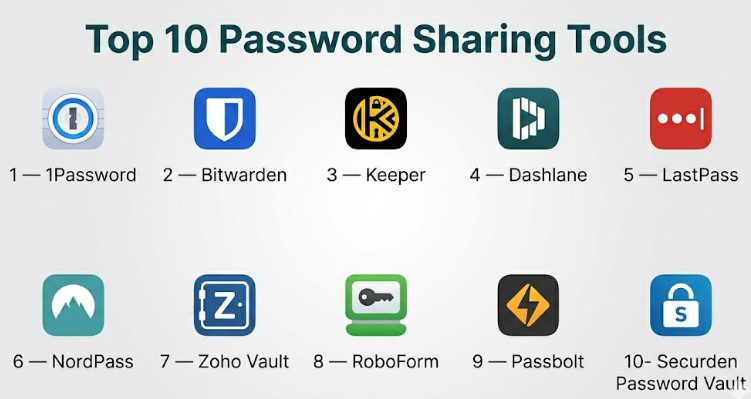
Top 10 Password Sharing Tools
#1 — 1Password
Short description :
1Password is a widely recognized password manager for individuals, families, teams, and enterprises. It helps users store passwords, passkeys, secure notes, documents, and shared credentials in encrypted vaults. Teams can create shared vaults, manage permissions, enforce security policies, and support safe employee onboarding and offboarding. It is especially strong for businesses that want a polished user experience with strong administrative control.
Key Features
- Shared vaults for teams and families
- Browser autofill and mobile autofill
- Password health and security alerts
- Admin console for businesses
- SSO and identity provider integrations in business plans
- Travel Mode for hiding selected vaults when needed
- Passkey support
Pros
- Strong user experience across devices
- Good balance of personal and business features
- Suitable for families, SMBs, and enterprises
Cons
- Advanced business features may require higher plans
- Users may need onboarding for vault permissions
- Not a full privileged access management platform
Platforms / Deployment
- Web / Windows / macOS / Linux / iOS / Android
- Cloud
Security & Compliance
Supports strong encryption, MFA, shared vault controls, and business security features. Specific compliance coverage can vary by plan and region. If strict compliance is required, validate directly before purchase.
Integrations & Ecosystem
1Password fits well into modern business and developer workflows.
- Browser extensions
- Mobile autofill
- SSO workflows
- Identity provider integrations
- Developer and command-line workflows
- Team vault sharing
Support & Community
1Password provides documentation, onboarding resources, and business support options. It has a strong user community and broad recognition among personal and business users.
#2 — Bitwarden
Short description :
Bitwarden is a popular password manager known for open-source transparency, strong security positioning, and flexible plans for individuals, families, teams, and enterprises. It supports secure password sharing through organizations and collections. Bitwarden is useful for technical users, privacy-conscious individuals, startups, SMBs, and enterprises that want strong value and broad platform support. It also offers self-hosting options for organizations that need more control.
Key Features
- Shared collections for teams and families
- Open-source codebase
- Browser and mobile autofill
- Password generator
- Send feature for secure sharing
- SSO and enterprise policy controls in business plans
- Cloud or self-hosted options
Pros
- Strong value for individuals and teams
- Open-source transparency
- Flexible deployment options
Cons
- Interface may feel less polished than some premium competitors
- Business setup requires planning for collections and permissions
- Advanced enterprise features may require higher plans
Platforms / Deployment
- Web / Windows / macOS / Linux / iOS / Android
- Cloud / Self-hosted
Security & Compliance
Supports end-to-end encryption, MFA, business policies, and enterprise controls. Compliance details can vary by plan and deployment. Self-hosted security depends on configuration and maintenance.
Integrations & Ecosystem
Bitwarden has a broad ecosystem for personal, business, and technical users.
- Browser extensions
- Mobile apps
- CLI access
- SSO integrations
- Directory and provisioning workflows in business contexts
- Self-hosted deployment options
Support & Community
Bitwarden has documentation, community forums, and support options. Its open-source community is active and useful for technical users.
#3 — Keeper
Short description :
Keeper is a password manager and secure vault platform for individuals, families, SMBs, and enterprises. It focuses on encrypted password storage, secure sharing, administrative controls, breach monitoring, and business security policies. Keeper is well suited for organizations that want strong vault sharing, role-based permissions, and centralized management without making the user experience overly complex.
Key Features
- Secure shared folders
- Role-based access controls
- Password health reporting
- Breach monitoring options
- Admin console
- MFA and SSO support in business plans
- Secure file storage options
Pros
- Strong business and enterprise controls
- Good secure sharing workflow
- Useful for teams needing policy enforcement
Cons
- Some add-ons may increase cost
- Full feature depth may require business or enterprise plans
- Users need proper permission setup to avoid over-sharing
Platforms / Deployment
- Web / Windows / macOS / Linux / iOS / Android
- Cloud
Security & Compliance
Supports zero-knowledge security architecture, encryption, MFA, role-based controls, and audit-oriented features. Specific compliance claims and availability should be verified by plan.
Integrations & Ecosystem
Keeper supports business and security workflows.
- Browser extensions
- Mobile autofill
- SSO integrations
- Directory service workflows
- Admin reporting
- Secure file and record sharing
Support & Community
Keeper provides documentation, business support, onboarding resources, and support options. It is widely used across personal and business password management scenarios.
#4 — Dashlane
Short description :
Dashlane is a password manager for individuals and businesses that combines secure password storage, sharing, autofill, password health monitoring, and admin controls. It is known for a clean interface and strong focus on usability. Dashlane works well for teams that want to improve password hygiene without overwhelming non-technical employees. It is useful for SMBs, agencies, and business teams that need simple secure sharing and visibility into password risks.
Key Features
- Secure password sharing
- Password health dashboard
- Browser autofill
- Admin console for business users
- Dark web monitoring options
- MFA support
- SSO support in business plans
Pros
- Easy for non-technical users
- Strong password health visibility
- Good fit for SMB adoption
Cons
- Advanced controls may vary by plan
- May be less flexible than some technical tools
- Business pricing should be reviewed carefully
Platforms / Deployment
- Web / iOS / Android / Browser extensions
- Cloud
Security & Compliance
Supports encryption, MFA, and business security controls. Specific compliance details should be validated based on plan and region.
Integrations & Ecosystem
Dashlane fits into common business and personal password workflows.
- Browser extensions
- Mobile autofill
- SSO workflows
- Admin dashboards
- Password health monitoring
- Secure sharing workflows
Support & Community
Dashlane provides support resources, documentation, and business support options. It is suitable for teams that need user-friendly onboarding.
#5 — LastPass
Short description :
LastPass is a well-known password manager used by individuals, families, and businesses for password storage, sharing, autofill, admin controls, and password security monitoring. It supports shared folders, team access, password policies, and business controls. It can be useful for organizations that want a familiar password sharing tool, but buyers should review current security posture, incident history, and internal risk requirements before adoption.
Key Features
- Shared folders
- Password autofill
- Admin console
- Security dashboard
- MFA support
- User and policy management
- Business password sharing
Pros
- Familiar name in password management
- Broad platform support
- Useful admin and sharing features
Cons
- Buyers should carefully evaluate security history and risk appetite
- Advanced controls may require higher plans
- Some teams may prefer alternatives with stronger trust perception
Platforms / Deployment
- Web / Windows / macOS / Linux / iOS / Android
- Cloud
Security & Compliance
Supports encryption, MFA, admin controls, and business security features. Due diligence is important for organizations with strict security requirements.
Integrations & Ecosystem
LastPass supports common business password workflows.
- Browser extensions
- Mobile autofill
- Shared folders
- Admin policies
- MFA workflows
- Business account management
Support & Community
LastPass provides documentation and support options. It has a large user base, though business buyers should review current trust, security, and support expectations.
#6 — NordPass
Short description :
NordPass is a password manager for individuals, families, and businesses that focuses on secure storage, password sharing, autofill, password health, and breach monitoring. It is designed to be easy to use while offering business-friendly controls. NordPass is a good fit for SMBs and teams looking for a modern password manager with a clean interface and secure sharing capabilities.
Key Features
- Secure password sharing
- Password health tools
- Data breach scanning
- Browser autofill
- Business admin panel
- MFA support
- SSO support in business plans
Pros
- Clean and simple user experience
- Good for SMBs and non-technical teams
- Strong focus on password health
Cons
- Enterprise feature depth may vary by plan
- Smaller business ecosystem than some older competitors
- Advanced admin requirements should be validated
Platforms / Deployment
- Web / Windows / macOS / Linux / iOS / Android
- Cloud
Security & Compliance
Supports encryption, MFA, and business controls. Specific compliance details should be verified directly for regulated environments.
Integrations & Ecosystem
NordPass supports common password management workflows.
- Browser extensions
- Mobile autofill
- Admin panel
- Secure sharing
- Password health monitoring
- Business onboarding workflows
Support & Community
NordPass provides help resources and customer support. It is generally approachable for small teams and individuals.
#7 — Zoho Vault
Short description :
Zoho Vault is a business-focused password manager that helps teams securely store, manage, and share passwords across departments. It is especially suitable for organizations already using Zoho products, SMBs, IT teams, and businesses that want centralized password control. Zoho Vault supports shared vaults, user management, access permissions, and audit-friendly controls for team environments.
Key Features
- Team password vaults
- Secure password sharing
- User groups and access controls
- Password policies
- Audit trails
- Admin management
- Zoho ecosystem alignment
Pros
- Good fit for Zoho users
- Business-focused sharing and controls
- Useful for SMB and department-level password management
Cons
- Best value may be inside the Zoho ecosystem
- Interface may not appeal to all users
- Advanced security needs should be validated by plan
Platforms / Deployment
- Web / iOS / Android / Browser extensions
- Cloud
Security & Compliance
Supports encryption, team controls, audit trails, and business password management features. Specific compliance coverage should be verified for regulated use cases.
Integrations & Ecosystem
Zoho Vault fits well into business and Zoho-centered workflows.
- Zoho apps
- Browser extensions
- Team vaults
- User groups
- Admin reporting
- Business workflow integrations
Support & Community
Zoho provides documentation and business support channels. It is suitable for organizations already familiar with Zoho products and administration.
#8 — RoboForm
Short description :
RoboForm is a long-standing password manager known for strong form filling, password storage, and secure sharing features. It is used by individuals, families, and businesses that need password management across browsers and devices. RoboForm is practical for users who value autofill accuracy, simple sharing, and established password manager functionality. It can work well for small teams and families.
Key Features
- Password vault
- Secure password sharing
- Form filling
- Password generator
- Browser autofill
- Cross-device sync
- Business admin options
Pros
- Strong form filling capabilities
- Simple and practical for everyday use
- Suitable for families and small teams
Cons
- Interface may feel traditional compared with newer tools
- Advanced enterprise controls may be limited compared with leading business tools
- Not ideal for complex security operations
Platforms / Deployment
- Web / Windows / macOS / iOS / Android / Browser extensions
- Cloud
Security & Compliance
Supports encrypted password storage and account security features. Specific compliance certifications are Not publicly stated for all plans.
Integrations & Ecosystem
RoboForm supports personal and small business password workflows.
- Browser extensions
- Mobile autofill
- Password sharing
- Form filling
- Business admin features
- Cross-device sync
Support & Community
RoboForm provides help resources and support channels. It has a long-standing user base among personal and business users.
#9 — Passbolt
Short description :
Passbolt is an open-source password manager designed for teams, especially technical teams, developers, IT groups, and organizations that prefer self-hosting or open-source transparency. It focuses on secure credential sharing, team collaboration, and access control. Passbolt is especially relevant for organizations that want more control over deployment and need a password sharing system built around team workflows.
Key Features
- Open-source password management
- Team-based password sharing
- User groups and permissions
- Self-hosted and cloud options
- Browser extension support
- Audit and admin features
- API-friendly workflows
Pros
- Strong fit for technical teams
- Open-source transparency
- Self-hosted control available
Cons
- Setup may be more technical
- Less beginner-friendly than consumer password managers
- Best for teams with IT ownership
Platforms / Deployment
- Web / Browser extensions
- Cloud / Self-hosted
Security & Compliance
Security depends on deployment and configuration. Self-hosted environments require proper updates, access control, backups, and operational management. Compliance is Varies / N/A.
Integrations & Ecosystem
Passbolt is useful for technical and team workflows.
- Browser extensions
- API access
- Team groups
- Self-hosted infrastructure
- Developer workflows
- Admin and audit processes
Support & Community
Passbolt has documentation, community resources, and business support options depending on plan. It is strongest for technical teams comfortable with structured access management.
#10 — Securden Password Vault
Short description :
Securden Password Vault is a business-focused password management tool designed for secure credential storage, controlled sharing, access governance, and administrative oversight. It is especially relevant for IT teams, security teams, MSPs, and organizations that need more control than a basic team password manager. Securden focuses on secure shared vaults, role-based access, audit trails, and enterprise-ready password management workflows.
Key Features
- Secure shared vaults
- Role-based access control
- Password access governance
- Audit trails
- Admin console
- Policy enforcement
- Business and IT team workflows
Pros
- Strong fit for IT and security teams
- Good governance and access control focus
- Useful for teams needing auditability
Cons
- May be more advanced than small teams need
- Setup can require security process planning
- Less consumer-friendly than simple password managers
Platforms / Deployment
- Web / Windows / Browser access depending on setup
- Cloud / Self-hosted / Hybrid depending on plan
Security & Compliance
Supports business-grade password management controls such as access permissions and audit trails. Specific compliance requirements should be verified before purchase.
Integrations & Ecosystem
Securden fits security and IT operations workflows.
- Directory service workflows
- Admin and audit processes
- Secure credential sharing
- IT team access controls
- Policy-based password management
- Enterprise security workflows
Support & Community
Securden provides business-oriented support and documentation. It is more relevant for IT and security-led teams than casual individual users.
Comparison Table
| Tool Name | Best For | Platform(s) Supported | Deployment | Standout Feature | Public Rating |
|---|---|---|---|---|---|
| 1Password | Families, SMBs, enterprises | Web, Windows, macOS, Linux, iOS, Android | Cloud | Polished shared vault experience | N/A |
| Bitwarden | Value-focused teams and technical users | Web, Windows, macOS, Linux, iOS, Android | Cloud / Self-hosted | Open-source and flexible deployment | N/A |
| Keeper | Businesses needing strong controls | Web, Windows, macOS, Linux, iOS, Android | Cloud | Role-based sharing and security controls | N/A |
| Dashlane | SMBs and non-technical teams | Web, iOS, Android, browser extensions | Cloud | Simple secure sharing and password health | N/A |
| LastPass | Broad business and personal use | Web, Windows, macOS, Linux, iOS, Android | Cloud | Familiar shared folders and admin controls | N/A |
| NordPass | SMBs and modern teams | Web, Windows, macOS, Linux, iOS, Android | Cloud | Clean interface and password health tools | N/A |
| Zoho Vault | Zoho users and SMBs | Web, iOS, Android, browser extensions | Cloud | Business password vaults inside Zoho ecosystem | N/A |
| RoboForm | Families and small teams | Web, Windows, macOS, iOS, Android, browser extensions | Cloud | Strong form filling and simple sharing | N/A |
| Passbolt | Developers and technical teams | Web, browser extensions | Cloud / Self-hosted | Open-source team password sharing | N/A |
| Securden Password Vault | IT and security teams | Web, Windows, browser access | Cloud / Self-hosted / Hybrid | Governance-focused password vault | N/A |
Evaluation & Password Sharing Tools
| Tool Name | Core (25%) | Ease (15%) | Integrations (15%) | Security (10%) | Performance (10%) | Support (10%) | Value (15%) | Weighted Total (0–10) |
|---|---|---|---|---|---|---|---|---|
| 1Password | 9 | 9 | 9 | 9 | 9 | 9 | 8 | 8.80 |
| Bitwarden | 9 | 8 | 8 | 9 | 8 | 8 | 9 | 8.45 |
| Keeper | 9 | 8 | 8 | 9 | 9 | 8 | 8 | 8.45 |
| Dashlane | 8 | 9 | 8 | 8 | 8 | 8 | 8 | 8.20 |
| LastPass | 8 | 8 | 8 | 7 | 8 | 8 | 8 | 7.85 |
| NordPass | 8 | 9 | 7 | 8 | 8 | 8 | 8 | 8.05 |
| Zoho Vault | 8 | 8 | 8 | 8 | 8 | 8 | 8 | 8.00 |
| RoboForm | 7 | 8 | 7 | 7 | 8 | 7 | 8 | 7.45 |
| Passbolt | 8 | 6 | 8 | 8 | 8 | 7 | 8 | 7.55 |
| Securden Password Vault | 9 | 7 | 8 | 9 | 8 | 8 | 8 | 8.15 |
The scoring is comparative and should be used as a shortlist guide, not a universal ranking. 1Password, Bitwarden, and Keeper are strong all-round choices for many teams. Passbolt is better for technical teams that value open-source and self-hosting. Securden is stronger for IT and security-led teams needing governance and auditability. RoboForm is more practical for simple sharing and form filling than deep enterprise control.
Which Password Sharing Tool Is Right for You?
Solo / Freelancer
Solo users and freelancers should focus on ease of use, autofill quality, secure sharing, and recovery options. 1Password, Bitwarden, Dashlane, NordPass, and RoboForm are practical choices for individuals who occasionally share access with clients, assistants, or family members.
Freelancers working with multiple clients should avoid saving passwords in spreadsheets or chat tools. A secure password manager with separate vaults or collections per client is a safer workflow.
SMB
Small businesses need secure sharing, onboarding, offboarding, admin controls, and password health reports. 1Password, Bitwarden, Keeper, Dashlane, NordPass, and Zoho Vault are strong options for SMBs.
SMBs should prioritize simplicity because password managers only work when employees actually use them. Shared vault design, browser autofill, mobile access, and easy permission management are important.
Mid-Market
Mid-market teams usually need more structured controls, including user groups, SSO, audit logs, admin policies, and directory integration. 1Password, Keeper, Bitwarden, Zoho Vault, and Securden are strong candidates.
If the company has technical teams and wants deployment flexibility, Bitwarden or Passbolt may be useful. If IT governance is the main priority, Securden should be evaluated.
Enterprise
Enterprises should choose based on security architecture, identity integration, auditability, admin controls, compliance requirements, support quality, and operational fit. 1Password, Keeper, Bitwarden, Securden, and Passbolt can be relevant depending on the environment.
Enterprise buyers should validate SSO, SCIM, role-based access control, audit logs, password policy enforcement, emergency access, data residency expectations, and vendor security documentation before adoption.
Budget vs Premium
Budget-focused users may prefer Bitwarden or RoboForm because they can offer strong value. Families and individuals can also compare 1Password, NordPass, Dashlane, and Keeper based on plan limits and sharing needs.
Premium plans are worth considering when the organization needs SSO, SCIM, advanced admin controls, audit logs, breach monitoring, enterprise support, and policy enforcement.
Feature Depth vs Ease of Use
For ease of use, 1Password, Dashlane, NordPass, and RoboForm are approachable for non-technical users. They work well when adoption speed matters.
For feature depth, Bitwarden, Keeper, Passbolt, Securden, and Zoho Vault provide stronger controls for teams, IT, and security workflows. These may require more setup planning.
Integrations & Scalability
For growing businesses, integrations with identity providers, browsers, mobile devices, and admin workflows matter. 1Password, Bitwarden, Keeper, Zoho Vault, Passbolt, and Securden are stronger for scaling.
Teams should check whether the tool supports SSO, SCIM, directory sync, admin roles, shared vaults, user groups, audit logs, and export controls before committing.
Security & Compliance Needs
Security-focused teams should prioritize encryption model, zero-knowledge design, MFA, SSO, RBAC, audit logs, emergency recovery, breach monitoring, and offboarding controls.
For regulated industries, do not rely only on marketing pages. Ask for current security documentation, compliance reports, data handling practices, incident history, and admin control details before choosing a tool.
Frequently Asked Questions
1. What is a password sharing tool?
A password sharing tool is a secure system for storing and sharing passwords through encrypted vaults instead of unsafe methods like email, chat, spreadsheets, or documents. It helps teams control who can access credentials and revoke access when needed.
2. Why should teams avoid sharing passwords through chat or email?
Chat and email are risky because passwords can be copied, forwarded, searched, screenshotted, or left behind after an employee leaves. Password sharing tools reduce risk by using encrypted vaults, permissions, audit logs, and controlled access.
3. Which password sharing tool is best for small teams?
1Password, Bitwarden, Keeper, Dashlane, NordPass, and Zoho Vault are strong options for small teams. The best choice depends on budget, ease of use, admin needs, and whether the team needs SSO or advanced reporting.
4. Which tool is best for technical teams?
Bitwarden, Passbolt, and Securden are strong options for technical teams. Bitwarden offers open-source transparency and self-hosting options, Passbolt is built around team credential sharing, and Securden is useful for IT governance.
5. Are password sharing tools safe?
A good password sharing tool is much safer than manual sharing when configured correctly. Look for encryption, MFA, secure shared vaults, admin controls, role-based permissions, audit logs, and a clear security architecture.
6. What is a shared vault?
A shared vault is a secure folder or workspace where selected users can access specific passwords or records. Admins can control who can view, edit, share, or manage items inside the vault.
7. What happens when an employee leaves?
A business password manager should allow admins to remove the user, transfer ownership, revoke access, and review shared credentials. This is one of the biggest reasons teams should avoid unmanaged password sharing.
8. Do password sharing tools support MFA?
Most leading password managers support MFA for account protection. Business plans may also support SSO, security policies, device controls, and identity provider integrations depending on the vendor and plan.
9. Can password managers store more than passwords?
Yes. Many tools can store secure notes, software licenses, credit cards, server credentials, API keys, documents, and identity information. However, sensitive secrets used in production systems may require a dedicated secrets manager.
10. What is the difference between a password manager and a secrets manager?
A password manager is mainly for human-used credentials, shared accounts, and secure autofill. A secrets manager is designed for machine secrets, API keys, certificates, tokens, and application infrastructure workflows.
11. What is the biggest mistake teams make with password sharing tools?
The biggest mistake is creating shared vaults without clear permissions. Teams should separate credentials by department, client, project, and sensitivity level. Everyone should not have access to everything.
12. How should I choose the right password sharing tool?
Start by identifying your team size, security requirements, budget, identity provider needs, and offboarding process. Shortlist two or three tools, test shared vaults and admin controls, validate security features, and pilot with a small group before rollout.
Conclusion
Password sharing tools are essential for safer credential management because they replace risky habits like sending passwords through chat, email, or spreadsheets. The right tool depends on the user type and security maturity. 1Password, Bitwarden, and Keeper are strong all-round options for many teams, while Dashlane and NordPass are approachable for SMBs and non-technical users. Zoho Vault fits businesses already using Zoho, RoboForm is practical for simple sharing, Passbolt is strong for technical teams, and Securden is useful for IT and security-led organizations.
