Introduction
Classroom interactive whiteboards are digital teaching displays that allow teachers and students to write, draw, present, annotate, collaborate, and interact with lessons on a large touchscreen or connected display. They replace or extend traditional chalkboards, marker boards, projectors, and static presentation screens by adding touch interaction, multimedia content, screen sharing, classroom apps, and real-time collaboration.
Interactive whiteboards matter because modern classrooms need more visual, flexible, and student-centered learning. Teachers can explain concepts with diagrams, videos, quizzes, annotations, digital textbooks, web content, and student participation. Students can solve problems on the board, collaborate in groups, and engage with lessons more actively.
Common use cases include:
- Digital writing and annotation during lessons
- Displaying slides, videos, documents, and websites
- Running quizzes and classroom activities
- Supporting hybrid and remote teaching
- Saving board notes after class
- Sharing student work on screen
- Teaching math, science, language, coding, and design topics
- Supporting group collaboration and brainstorming
Buyers should evaluate:
- Touch accuracy and writing experience
- Display size and screen quality
- Classroom software support
- Device screen sharing
- Annotation and whiteboarding tools
- Multi-user collaboration
- Compatibility with laptops and tablets
- Durability and classroom safety
- Teacher training requirements
- Warranty, support, and maintenance
Best for: Schools, colleges, coaching centers, training institutes, universities, smart classrooms, hybrid classrooms, corporate trainers, and education teams that want more interactive teaching.
Not ideal for: Very small classrooms with limited budgets, schools without reliable power or devices, or teachers who only need a simple writing board without multimedia or collaboration features.
Key Trends in Classroom Interactive Whiteboards
- Touch-first teaching: Teachers increasingly prefer boards that feel natural for writing, drawing, and annotation.
- Hybrid classroom support: Screen sharing, video conferencing, and remote participation features are becoming more important.
- Cloud lesson storage: Teachers want to save, reuse, and share board notes after class.
- Multi-device collaboration: Students and teachers expect laptops, tablets, and phones to connect easily.
- Built-in teaching apps: Interactive boards now often include whiteboarding, browser, file viewer, polling, and classroom tools.
- Better pen performance: Low-latency writing, palm rejection, and pressure-like writing feel are key expectations.
- AI-assisted teaching support: Some education displays are adding smart tools for handwriting recognition, lesson planning, and content support.
- Stronger IT management: Schools need device management, access control, updates, and remote support.
- Durability and safety: Anti-glare glass, strong panels, child-safe design, and classroom-ready hardware matter.
- Ecosystem compatibility: Buyers want boards that work with existing learning platforms, cloud storage, and classroom devices.
How We Selected These Tools
The tools below were selected based on classroom relevance, brand recognition, teaching workflow support, screen interaction quality, software ecosystem, deployment flexibility, and practical suitability for education environments.
The evaluation considered:
- Classroom adoption and education market presence
- Display and touch quality
- Whiteboarding and annotation features
- Screen sharing and device compatibility
- Teacher usability and onboarding
- Collaboration and student engagement features
- IT management and admin controls
- Integration with learning and productivity tools
- Support, warranty, and service ecosystem
- Fit for schools, coaching centers, colleges, and enterprise training rooms
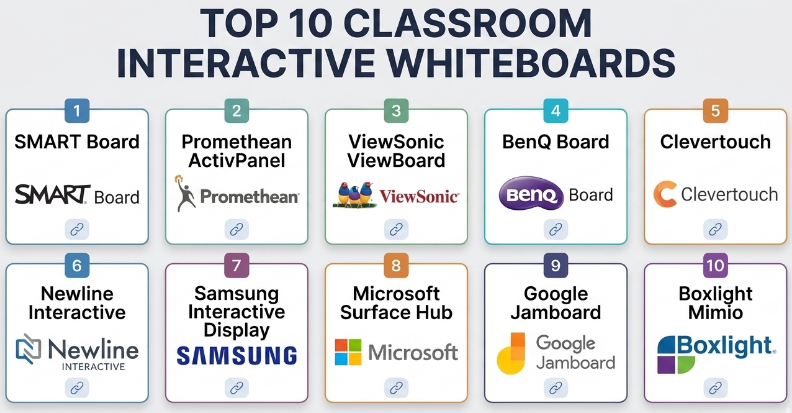
Top 10 Classroom Interactive Whiteboards
#1 — SMART Board
Short description :
SMART Board is one of the most recognized classroom interactive whiteboard solutions, designed for schools that need reliable digital teaching, annotation, collaboration, and interactive lesson delivery. It supports teachers with touch-based writing, classroom activities, screen sharing, and education-focused software. SMART Board is especially useful for schools that want a mature classroom display ecosystem with strong education roots. It fits primary schools, secondary schools, colleges, and training environments.
Key Features
- Interactive touchscreen display
- Digital whiteboarding and annotation
- Multi-touch support
- Classroom activity tools
- Screen sharing support
- Lesson saving and reuse
- Education-focused software ecosystem
Pros
- Strong education-focused brand recognition
- Good classroom whiteboarding experience
- Useful for interactive teaching and student participation
Cons
- Pricing may be higher than basic display options
- Full value depends on teacher training
- Software ecosystem may require licensing review
Platforms / Deployment
- Interactive display hardware / Connected classroom devices
- Cloud / Local classroom deployment depending on setup
Security & Compliance
Security depends on account setup, classroom network, software configuration, admin controls, and device management. Specific compliance details should be validated by the institution.
Integrations & Ecosystem
SMART Board fits structured classroom teaching workflows.
- Classroom lesson software
- Screen sharing tools
- Teacher devices
- Student participation workflows
- Cloud lesson storage depending on setup
- Education content workflows
Support & Community
SMART provides education-focused resources, training materials, and support options. It has broad recognition among schools and teachers.
#2 — Promethean ActivPanel
Short description :
Promethean ActivPanel is an interactive classroom display designed for modern teaching, digital whiteboarding, device sharing, and classroom engagement. It is suitable for schools and institutions that want a large touchscreen panel with teaching software and classroom-focused features. Promethean is widely known in education and supports interactive lessons, annotation, and collaboration. It is especially useful for smart classroom setups.
Key Features
- Large interactive touchscreen display
- Built-in whiteboarding tools
- Multi-user touch support
- Screen sharing
- Classroom software ecosystem
- Annotation over content
- Admin and device management features depending on setup
Pros
- Strong classroom display experience
- Good for interactive and multimedia teaching
- Education-focused ecosystem
Cons
- Setup and training may be required
- Cost can be significant for large deployments
- Feature availability may vary by model
Platforms / Deployment
- Interactive display hardware / Teacher devices / Student devices
- Cloud / Local classroom deployment depending on configuration
Security & Compliance
Security depends on device management, user accounts, network settings, update policies, and classroom software configuration. Institutions should validate compliance needs before rollout.
Integrations & Ecosystem
Promethean ActivPanel supports classroom collaboration and teaching workflows.
- Teacher laptops and tablets
- Screen sharing
- Lesson presentation tools
- Annotation workflows
- Classroom engagement activities
- Device management systems depending on setup
Support & Community
Promethean offers education resources, support, and training materials. It has a strong presence in classroom technology environments.
#3 — ViewSonic ViewBoard
Short description :
ViewSonic ViewBoard is an interactive display solution designed for classrooms, meeting rooms, and training spaces. It offers digital whiteboarding, screen sharing, annotation, and collaboration features. For education, ViewBoard is useful for schools that want a balance of interactive teaching features and display hardware flexibility. It works well for lessons, presentations, group activities, and hybrid learning scenarios.
Key Features
- Interactive touchscreen display
- Digital whiteboard software
- Screen sharing and casting
- Annotation tools
- Multi-touch support
- Cloud-based lesson and file workflows depending on setup
- Classroom and meeting room flexibility
Pros
- Good balance of education and business use
- Strong visual display quality
- Useful for hybrid teaching and presentations
Cons
- Education workflow depth may vary by software setup
- Teachers may need training for advanced features
- Model selection should be reviewed carefully
Platforms / Deployment
- Interactive display hardware / Web / Connected devices
- Cloud / Local / Hybrid depending on setup
Security & Compliance
Security depends on software accounts, network setup, device management, file sharing, and admin configuration. Compliance details should be reviewed by the school or organization.
Integrations & Ecosystem
ViewSonic ViewBoard fits classroom and training workflows.
- Screen casting
- Whiteboarding
- Presentation tools
- Cloud file access depending on setup
- Device collaboration
- Classroom and corporate training use cases
Support & Community
ViewSonic provides product documentation, support resources, and education-focused materials. It is used in both classrooms and workplace training spaces.
#4 — BenQ Board
Short description :
BenQ Board is an interactive display platform built for classroom teaching, collaboration, and digital lesson delivery. It focuses on interactive whiteboarding, screen sharing, classroom-friendly display features, and device management. BenQ also emphasizes eye-care display technologies, which can be important in classroom environments. It is useful for schools that need reliable interactive displays with teaching and IT management features.
Key Features
- Interactive touchscreen display
- Digital whiteboarding
- Wireless screen sharing
- Annotation over content
- Multi-touch collaboration
- Eye-care display features depending on model
- Device and account management features depending on setup
Pros
- Good classroom display usability
- Eye-care positioning is useful for schools
- Strong for teacher-led digital lessons
Cons
- Feature set depends on model and software package
- Advanced use may require teacher training
- Full ecosystem should be reviewed before purchase
Platforms / Deployment
- Interactive display hardware / Connected classroom devices
- Cloud / Local / Hybrid depending on setup
Security & Compliance
Security depends on admin setup, network controls, account access, software settings, and device management. Schools should validate data handling and privacy requirements.
Integrations & Ecosystem
BenQ Board supports interactive classroom workflows.
- Teacher device sharing
- Whiteboarding
- Annotation
- Classroom display management
- Cloud file workflows depending on setup
- Hybrid teaching support
Support & Community
BenQ provides documentation, product support, and education-focused resources. It is suitable for schools seeking interactive display hardware with classroom features.
#5 — Clevertouch
Short description :
Clevertouch is an interactive display and classroom technology solution designed for education and workplace collaboration. In classrooms, it supports whiteboarding, annotation, screen sharing, lesson delivery, and interactive activities. Clevertouch is especially useful for schools that want a connected teaching panel with classroom-ready software and centralized management options. It can support both teacher-led and collaborative learning environments.
Key Features
- Interactive touchscreen panel
- Whiteboarding and annotation
- Screen sharing
- Classroom apps and content tools
- Remote management features depending on setup
- Multi-touch collaboration
- Lesson presentation support
Pros
- Strong for interactive classrooms
- Useful software and display combination
- Good for schools needing centralized management
Cons
- Availability and support may vary by region
- Full value depends on teacher adoption
- Buyers should compare model features carefully
Platforms / Deployment
- Interactive display hardware / Web / Connected devices
- Cloud / Local / Hybrid depending on configuration
Security & Compliance
Security depends on device management, software setup, account controls, network policies, and data handling configuration. Institutions should validate compliance requirements.
Integrations & Ecosystem
Clevertouch supports education and collaboration workflows.
- Classroom whiteboarding
- Screen mirroring
- Teacher content workflows
- Device management
- Student collaboration
- Training and presentation environments
Support & Community
Clevertouch provides support and education resources. It is relevant for schools and organizations looking for complete interactive display solutions.
#6 — Newline Interactive
Short description :
Newline Interactive offers interactive displays for classrooms, training rooms, and collaborative spaces. These boards support digital whiteboarding, content annotation, screen sharing, and multi-user interaction. Newline is useful for schools that want interactive display hardware with flexible software compatibility. It can fit classrooms, lecture halls, coaching centers, and corporate training environments.
Key Features
- Interactive touchscreen display
- Digital whiteboarding
- Multi-touch support
- Wireless screen sharing
- Annotation features
- Flexible software compatibility
- Classroom and business collaboration support
Pros
- Flexible for education and training spaces
- Good for digital whiteboarding and presentations
- Suitable for mixed classroom and meeting use
Cons
- Education-specific workflow may depend on chosen software
- Training may be needed for full adoption
- Hardware and model choices should be reviewed carefully
Platforms / Deployment
- Interactive display hardware / Connected devices
- Local / Cloud-assisted depending on software setup
Security & Compliance
Security depends on connected software, network setup, user accounts, device management, and classroom policies. Compliance should be validated before institutional deployment.
Integrations & Ecosystem
Newline Interactive fits flexible classroom and training use cases.
- Screen sharing
- Whiteboarding
- Annotation
- Teacher device workflows
- Meeting and training tools
- Compatible classroom apps depending on setup
Support & Community
Newline provides documentation and support resources. It is useful for schools and training teams seeking flexible interactive display solutions.
#7 — Samsung Interactive Display
Short description :
Samsung Interactive Display solutions support digital writing, annotation, presentation, and collaboration in classrooms and training spaces. Samsung’s display quality and hardware ecosystem can be useful for schools, colleges, and training centers that want reliable interactive panels. These displays are suitable for teaching, brainstorming, lecture delivery, and multimedia presentations. They are especially relevant where display quality and hardware durability are key buying factors.
Key Features
- Interactive touchscreen display
- Digital writing and annotation
- Screen sharing depending on setup
- High-quality display panel
- Multi-user interaction depending on model
- Presentation support
- Classroom and meeting room use
Pros
- Strong display hardware reputation
- Useful for multimedia lessons
- Good fit for classrooms and training rooms
Cons
- Education-specific software may require additional setup
- Feature depth depends on model
- Buyers should validate compatibility with existing classroom tools
Platforms / Deployment
- Interactive display hardware / Connected devices
- Local / Cloud-assisted depending on setup
Security & Compliance
Security depends on device settings, network configuration, connected services, user accounts, and admin policies. Compliance details should be reviewed by the institution.
Integrations & Ecosystem
Samsung Interactive Display fits digital teaching and presentation workflows.
- Screen sharing
- Multimedia presentation
- Digital writing
- Classroom display workflows
- Training room collaboration
- Connected device usage
Support & Community
Samsung provides product support and documentation. It is a strong option for institutions prioritizing display quality and hardware reliability.
#8 — Microsoft Surface Hub
Short description :
Microsoft Surface Hub is a collaborative interactive display designed for meetings, training, teaching, and hybrid collaboration. While it is often used in business settings, it can also support classrooms, lecture rooms, and training environments that rely on Microsoft tools. Surface Hub is especially useful where digital whiteboarding, video meetings, file collaboration, and Microsoft ecosystem integration are important.
Key Features
- Interactive touchscreen display
- Digital whiteboarding
- Video meeting support
- Microsoft ecosystem integration
- Multi-user collaboration
- File and presentation workflows
- Hybrid classroom and meeting support
Pros
- Strong for Microsoft-based environments
- Useful for hybrid collaboration
- Good for training rooms and advanced classrooms
Cons
- Cost may be high for many schools
- More business-collaboration focused than traditional classroom-focused
- Best value depends on Microsoft ecosystem adoption
Platforms / Deployment
- Interactive display hardware / Microsoft ecosystem
- Cloud / Local / Hybrid depending on organization setup
Security & Compliance
Security depends on Microsoft account configuration, device management, identity controls, network policies, and organizational settings. Compliance support depends on the broader Microsoft environment.
Integrations & Ecosystem
Surface Hub fits collaboration-heavy education and training workflows.
- Microsoft whiteboarding
- Video meetings
- File collaboration
- Presentation workflows
- Hybrid classroom setups
- Enterprise identity and device management
Support & Community
Microsoft provides enterprise support, documentation, and IT management resources. Surface Hub is most suitable for institutions already invested in Microsoft collaboration tools.
#9 — Google Jamboard
Short description :
Google Jamboard is known as a digital whiteboarding tool and interactive display concept connected to Google’s education and collaboration ecosystem. It has been used for brainstorming, classroom collaboration, visual notes, and group activities. For buyers, the important point is to evaluate current availability, product direction, and supported alternatives before planning new deployments. It remains relevant as a reference point for cloud-based collaborative whiteboarding in classrooms.
Key Features
- Digital whiteboarding
- Cloud collaboration
- Sticky notes and drawing tools
- Student participation workflows
- Google ecosystem connection
- Simple visual brainstorming
- Classroom activity support
Pros
- Easy for collaborative whiteboarding
- Familiar for Google-based classrooms
- Useful for simple brainstorming and visual activities
Cons
- Buyers should verify current availability and future support
- Hardware direction may not fit new long-term deployments
- Advanced classroom display features are limited compared with full panels
Platforms / Deployment
- Web / Google ecosystem / Interactive display hardware availability varies
- Cloud
Security & Compliance
Security depends on Google account settings, education domain policies, sharing controls, and admin configuration. Institutions should validate current support and compliance posture before use.
Integrations & Ecosystem
Jamboard-style workflows fit collaborative classroom activities.
- Google classroom workflows
- Shared whiteboards
- Group brainstorming
- Student collaboration
- Cloud file workflows
- Visual lesson activities
Support & Community
Support and availability should be verified before new deployment decisions. Many educators are familiar with Jamboard-style collaborative whiteboarding workflows.
#10 — Boxlight Mimio
Short description :
Boxlight Mimio offers interactive classroom technologies including interactive displays, whiteboarding tools, classroom software, and teaching solutions. It is useful for schools that want interactive lessons, student engagement, and digital classroom tools. Mimio is especially relevant for institutions looking for classroom-focused interactive display solutions with education software and teaching support. It fits K-12 classrooms, training labs, and smart classroom projects.
Key Features
- Interactive classroom display options
- Digital whiteboarding
- Annotation tools
- Lesson software
- Student engagement features
- Classroom technology ecosystem
- Teacher-focused workflows
Pros
- Education-focused solution
- Useful for interactive lessons
- Supports classroom engagement workflows
Cons
- Feature availability depends on product configuration
- Buyers should compare display and software bundles carefully
- Teacher training is important for adoption
Platforms / Deployment
- Interactive display hardware / Classroom software
- Cloud / Local deployment depending on setup
Security & Compliance
Security depends on software configuration, student accounts, device management, network policies, and admin controls. Schools should verify compliance requirements before rollout.
Integrations & Ecosystem
Boxlight Mimio supports classroom teaching workflows.
- Interactive lessons
- Teacher whiteboarding
- Student engagement
- Classroom display tools
- Annotation workflows
- Education software ecosystem
Support & Community
Boxlight provides education-focused support and training resources. It is relevant for schools seeking integrated interactive classroom solutions.
Comparison Table
| Tool Name | Best For | Platform(s) Supported | Deployment | Standout Feature | Public Rating |
|---|---|---|---|---|---|
| SMART Board | Education-focused smart classrooms | Interactive display hardware, connected devices | Cloud / Local | Mature classroom teaching ecosystem | N/A |
| Promethean ActivPanel | Interactive digital classrooms | Interactive display hardware, connected devices | Cloud / Local | Classroom engagement and teaching tools | N/A |
| ViewSonic ViewBoard | Schools and training rooms | Interactive display hardware, connected devices | Cloud / Local / Hybrid | Display plus whiteboarding flexibility | N/A |
| BenQ Board | Classroom display and eye-care needs | Interactive display hardware, connected devices | Cloud / Local / Hybrid | Classroom display with eye-care focus | N/A |
| Clevertouch | Connected classroom collaboration | Interactive display hardware, web, connected devices | Cloud / Local / Hybrid | Interactive display with management features | N/A |
| Newline Interactive | Flexible education and training spaces | Interactive display hardware, connected devices | Local / Cloud-assisted | Flexible classroom and meeting display use | N/A |
| Samsung Interactive Display | High-quality classroom displays | Interactive display hardware, connected devices | Local / Cloud-assisted | Strong display hardware quality | N/A |
| Microsoft Surface Hub | Microsoft-based hybrid classrooms | Interactive display hardware, Microsoft ecosystem | Cloud / Local / Hybrid | Collaboration and video meeting integration | N/A |
| Google Jamboard | Cloud whiteboarding workflows | Web, Google ecosystem, hardware availability varies | Cloud | Simple collaborative whiteboarding | N/A |
| Boxlight Mimio | K-12 classroom engagement | Interactive display hardware, classroom software | Cloud / Local | Education-focused interactive lessons | N/A |
Evaluation & Classroom Interactive Whiteboards
| Tool Name | Core (25%) | Ease (15%) | Integrations (15%) | Security (10%) | Performance (10%) | Support (10%) | Value (15%) | Weighted Total (0–10) |
|---|---|---|---|---|---|---|---|---|
| SMART Board | 9 | 8 | 8 | 8 | 9 | 9 | 8 | 8.45 |
| Promethean ActivPanel | 9 | 8 | 8 | 8 | 9 | 9 | 8 | 8.45 |
| ViewSonic ViewBoard | 8 | 8 | 8 | 7 | 8 | 8 | 8 | 7.95 |
| BenQ Board | 8 | 8 | 8 | 8 | 8 | 8 | 8 | 8.05 |
| Clevertouch | 8 | 8 | 8 | 7 | 8 | 8 | 8 | 7.95 |
| Newline Interactive | 8 | 8 | 7 | 7 | 8 | 8 | 8 | 7.80 |
| Samsung Interactive Display | 8 | 8 | 7 | 8 | 9 | 8 | 7 | 7.95 |
| Microsoft Surface Hub | 8 | 7 | 9 | 9 | 9 | 9 | 6 | 8.05 |
| Google Jamboard | 6 | 8 | 8 | 8 | 7 | 7 | 7 | 7.25 |
| Boxlight Mimio | 8 | 8 | 7 | 7 | 8 | 8 | 8 | 7.80 |
The scoring is comparative and should be used as a shortlist guide, not as a universal ranking. SMART Board and Promethean ActivPanel are strong education-focused options. ViewSonic, BenQ, Clevertouch, Newline, and Samsung offer strong interactive display choices. Microsoft Surface Hub is better for Microsoft-based collaboration environments. Google Jamboard should be evaluated carefully for current availability and long-term support before new deployment planning.
Which Classroom Interactive Whiteboard Is Right for You?
Solo / Freelancer
Solo tutors and freelance trainers should avoid overbuying hardware unless they regularly teach groups. If they need interactive teaching, a smaller interactive display, tablet casting setup, or digital whiteboard software may be enough.
For physical classrooms, ViewSonic ViewBoard, BenQ Board, or Newline Interactive may offer practical options depending on budget and availability. The best choice should be simple enough to use without technical support every day.
SMB
Small schools, coaching centers, and training institutes should focus on reliability, easy teaching workflows, warranty, and support. SMART Board, Promethean ActivPanel, ViewSonic ViewBoard, BenQ Board, and Boxlight Mimio are practical candidates.
SMBs should prioritize teacher adoption. A high-end board is not useful if teachers only use it as a projector. Training, lesson templates, and simple workflows matter as much as hardware.
Mid-Market
Mid-sized schools, colleges, and education groups should evaluate device management, classroom consistency, software licensing, and support coverage. SMART Board, Promethean ActivPanel, Clevertouch, BenQ Board, and ViewSonic ViewBoard may fit well.
For multi-classroom deployments, standardization matters. Using the same board ecosystem across classrooms can reduce training time and simplify maintenance.
Enterprise
Large universities, school networks, corporate training centers, and enterprise learning teams should evaluate interactive whiteboards through IT, security, procurement, and teaching requirements. Microsoft Surface Hub can fit Microsoft-heavy collaboration environments, while SMART, Promethean, BenQ, and Clevertouch can fit education-led deployments.
Enterprise buyers should validate identity management, updates, remote device management, warranty coverage, support SLAs, classroom network requirements, and data privacy before purchase.
Budget vs Premium
Budget-focused buyers should compare display size, touch quality, warranty, software included, and local service support. A lower-cost board may be enough if the main needs are writing, screen sharing, and annotation.
Premium boards are worth considering when schools need better touch accuracy, durable hardware, strong software, classroom activities, remote management, and long-term support.
Feature Depth vs Ease of Use
For ease of use, schools should choose boards with simple whiteboarding, annotation, and screen sharing. Teachers should be able to start a lesson quickly without complex setup.
For feature depth, SMART Board, Promethean ActivPanel, Clevertouch, and Microsoft Surface Hub can support richer workflows, but training is necessary to use them fully.
Integrations & Scalability
Scalability depends on device management, compatibility with teacher laptops, learning platforms, cloud storage, video conferencing, and classroom network infrastructure.
Schools should also check whether the board works with existing devices. A board that does not connect smoothly with teacher laptops or student devices may create frustration.
Security & Compliance Needs
Schools should evaluate student privacy, account access, screen sharing permissions, file storage, camera and microphone usage, software updates, and admin controls.
For hybrid classrooms, security becomes more important because boards may connect to video meetings, cloud storage, student accounts, and external devices.
Frequently Asked Questions
1. What is a classroom interactive whiteboard?
A classroom interactive whiteboard is a digital board or touchscreen display that allows teachers and students to write, draw, annotate, present, and interact with lesson content. It combines a board, display, and collaboration tool in one teaching system.
2. How is an interactive whiteboard different from a projector?
A projector only displays content, while an interactive whiteboard allows touch, writing, annotation, screen interaction, and sometimes collaboration. Interactive boards make lessons more active and student-centered.
3. Which interactive whiteboard is best for schools?
SMART Board and Promethean ActivPanel are strong education-focused options. ViewSonic ViewBoard, BenQ Board, Clevertouch, Newline Interactive, and Boxlight Mimio are also practical choices depending on budget, support, and classroom needs.
4. What size interactive whiteboard is best for classrooms?
The best size depends on classroom size, viewing distance, and student count. Small classrooms may use smaller displays, while large classrooms usually need larger panels so students at the back can read clearly.
5. Do teachers need training to use interactive whiteboards?
Yes. Basic writing and presenting are easy, but full value comes from training. Teachers should learn annotation, screen sharing, lesson saving, interactive activities, and student participation workflows.
6. Can interactive whiteboards support hybrid teaching?
Yes. Many interactive whiteboards can support hybrid teaching through screen sharing, video conferencing, digital whiteboarding, and cloud-based lesson sharing. Compatibility depends on model and software setup.
7. Are interactive whiteboards useful for all subjects?
Yes, but the use case differs by subject. Math teachers can solve equations, science teachers can annotate diagrams, language teachers can highlight text, and history teachers can present maps, timelines, and media.
8. What is the biggest mistake schools make when buying interactive whiteboards?
The biggest mistake is focusing only on hardware size and price while ignoring teacher training, software usability, support, warranty, network readiness, and long-term maintenance.
9. Can students interact with the board?
Yes. Many boards support student interaction through touch, writing, group activities, screen sharing, or connected devices. This can improve participation and classroom engagement.
10. Do interactive whiteboards need internet access?
Basic whiteboarding may work offline, but cloud storage, screen sharing, updates, web content, remote collaboration, and online teaching tools usually require internet access.
11. How long do classroom interactive whiteboards last?
Lifespan depends on hardware quality, usage, maintenance, software updates, and warranty support. Schools should check warranty terms, panel durability, repair options, and local service availability before buying.
12. How should I choose the right classroom interactive whiteboard?
Start with classroom size, teaching style, budget, device compatibility, software needs, support availability, and teacher training. Shortlist two or three options, test writing quality and screen sharing, review warranty and support, then choose the board that teachers can use confidently every day.
Conclusion
Classroom interactive whiteboards can transform teaching by making lessons more visual, interactive, collaborative, and reusable. The best choice depends on the classroom size, teacher comfort, student needs, IT setup, budget, and long-term support. SMART Board and Promethean ActivPanel are strong education-focused options, while ViewSonic ViewBoard, BenQ Board, Clevertouch, Newline Interactive, Samsung Interactive Display, and Boxlight Mimio offer practical alternatives for smart classrooms and training spaces. Microsoft Surface Hub is a better fit for Microsoft-centered collaboration environments, while Google Jamboard-style workflows should be evaluated carefully for current support before new deployments.
