Introduction
Photo organization tools help users store, sort, tag, search, back up, edit, and manage growing photo collections across phones, cameras, computers, cloud storage, and external drives. Instead of leaving photos scattered across folders, memory cards, messaging apps, and cloud accounts, these tools create a structured system for finding and managing images quickly.
Photo organization matters because modern users capture thousands of photos every year. Professionals manage client shoots, businesses organize product images, families preserve memories, creators maintain visual libraries, and marketers store campaign assets. A good photo organization tool reduces duplication, improves search, supports backup planning, and helps users turn messy photo collections into a reliable visual archive.
Common use cases include:
- Organizing family and personal photos
- Managing professional photography libraries
- Sorting product, event, and marketing images
- Backing up photos across devices
- Finding images by face, date, location, keyword, or album
- Removing duplicates and clutter
- Creating albums, collections, and portfolios
- Managing RAW files and edited versions
Buyers should evaluate:
- Photo import and library management
- Tagging, albums, folders, and metadata
- AI search and facial recognition
- Duplicate detection
- Cloud sync and backup
- RAW file support
- Editing and rating tools
- Sharing and collaboration
- Privacy and storage control
- Cross-platform availability
Best for: Photographers, creators, marketers, designers, families, social media teams, ecommerce sellers, students, agencies, and businesses managing large image collections.
Not ideal for: Users with very small photo collections who only need basic phone gallery organization. A default gallery app may be enough for simple personal use.
Key Trends in Photo Organization Tools
- AI-powered search: Users increasingly expect photo search by objects, faces, places, text, scenes, and visual similarity.
- Cloud-first storage: Many tools now focus on syncing images across phones, desktops, tablets, and browsers.
- Privacy-focused alternatives: Some users prefer local-first or self-hosted tools to avoid placing personal photos fully in cloud ecosystems.
- Duplicate cleanup: Photo libraries are growing quickly, so duplicate detection and cleanup are becoming essential.
- RAW workflow support: Professional and advanced users need tools that handle RAW files, metadata, edits, and exports cleanly.
- Mobile-first capture: Most photos are taken on phones, so mobile organization and backup are now core requirements.
- Face and people grouping: Family and event photo organization increasingly depends on face recognition and people albums.
- Metadata-based workflows: Professionals need filtering by camera, lens, date, location, rating, keyword, and file type.
- Creative workflow integration: Photo organization is often connected with editing, publishing, portfolio, and cloud storage workflows.
- Long-term archive planning: Users care more about export options, storage portability, and avoiding lock-in.
How We Selected These Tools
The tools below were selected based on practical usefulness, recognition, photo management depth, platform support, search and organization features, and fit across personal and professional workflows.
The evaluation considered:
- Market adoption and user recognition
- Photo library organization strength
- Search, tagging, and metadata features
- Cloud sync and backup quality
- RAW file and professional workflow support
- Ease of use for non-technical users
- Privacy and storage flexibility
- Duplicate management and cleanup support
- Sharing and collaboration options
- Fit for solo users, SMBs, mid-market teams, and enterprise-like creative workflows
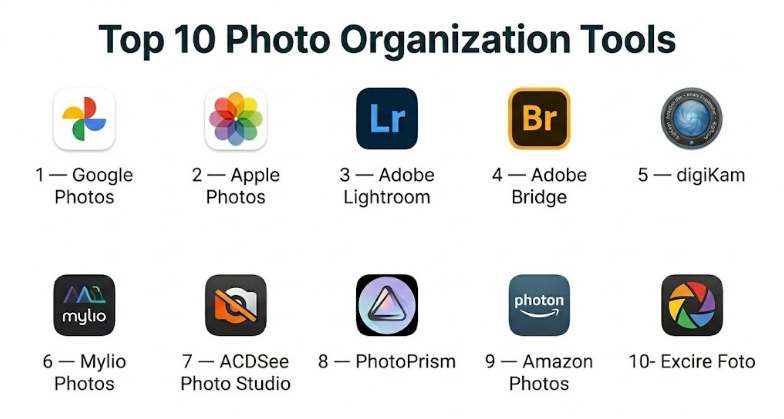
Top 10 Photo Organization Tools
#1 — Google Photos
Short description :
Google Photos is a widely used cloud-based photo organization tool for individuals, families, and everyday users who want automatic backup, search, albums, and sharing. It is especially strong for mobile photo management because it can automatically organize images by people, places, dates, and visual content. Users can quickly search large libraries without manually tagging every image. It is best for users who want convenience, smart search, and cloud access across devices.
Key Features
- Automatic photo and video backup
- AI-powered search by objects, people, places, and text
- Albums and shared albums
- Face grouping and memories
- Basic editing tools
- Cross-device sync
- Storage management tools
Pros
- Very easy for everyday users
- Strong AI search and automatic organization
- Excellent mobile and cloud experience
Cons
- Storage limits depend on account plan
- Less suitable for professional RAW-heavy workflows
- Privacy-conscious users may prefer local-first tools
Platforms / Deployment
- Web / iOS / Android
- Cloud
Security & Compliance
Security depends on Google account settings and user configuration. Specific photo-management compliance details are Not publicly stated for general consumer use.
Integrations & Ecosystem
Google Photos fits naturally into mobile and cloud-based personal workflows.
- Android and iOS photo backup
- Google account sync
- Shared albums
- Basic editing workflows
- Cloud storage workflows
- Search-based organization
Support & Community
Google Photos has help resources and a very large user base. Support is mostly self-service for personal users, with broader account-level help resources available.
#2 — Apple Photos
Short description :
Apple Photos is the default photo management app for users in the Apple ecosystem. It helps organize photos and videos across iPhone, iPad, and Mac with albums, memories, people recognition, location grouping, and iCloud sync. It is best for users who already rely on Apple devices and want a smooth, integrated photo library experience. Apple Photos is strong for personal and family photo organization.
Key Features
- iCloud photo sync
- Albums and smart albums
- People and pets recognition
- Location-based organization
- Memories and timeline views
- Basic photo and video editing
- Shared albums
Pros
- Seamless experience across Apple devices
- Good personal photo organization
- Strong privacy-focused ecosystem positioning
Cons
- Best experience is limited to Apple users
- Advanced professional workflow features are limited
- Storage depends on iCloud plan
Platforms / Deployment
- iOS / iPadOS / macOS / Web access features vary
- Cloud / Local
Security & Compliance
Security depends on Apple ID, device security, and iCloud settings. Specific business compliance details for consumer photo organization are Not publicly stated.
Integrations & Ecosystem
Apple Photos works best inside Apple device workflows.
- iPhone camera roll
- iCloud sync
- Shared albums
- Mac photo library
- Apple editing tools
- Device-level search and memories
Support & Community
Apple provides product help resources, and Apple Photos has a large user community. Many workflows are well documented through device and iCloud help resources.
#3 — Adobe Lightroom
Short description :
Adobe Lightroom is a professional photo organization and editing tool used by photographers, creators, agencies, and advanced hobbyists. It combines photo library management with powerful editing, ratings, metadata, albums, cloud sync, and RAW processing. Lightroom is especially valuable for users who need to organize, edit, and export high-quality images across devices. It is stronger for creative workflows than basic gallery apps.
Key Features
- Photo library management
- RAW photo support
- Albums, ratings, flags, and metadata
- Advanced editing tools
- Cloud sync depending on plan
- AI-assisted search and masking features
- Presets and export workflows
Pros
- Excellent for photographers and creators
- Strong editing plus organization in one tool
- Good RAW and metadata workflow
Cons
- Subscription-based pricing
- Can be more than casual users need
- Requires learning for best results
Platforms / Deployment
- Web / Windows / macOS / iOS / Android
- Cloud / Local depending on Lightroom version and setup
Security & Compliance
Security depends on Adobe account and plan settings. Specific compliance requirements should be validated for business or regulated use.
Integrations & Ecosystem
Lightroom fits into professional photography and creative workflows.
- Adobe creative ecosystem
- RAW editing workflows
- Cloud photo sync
- Presets and exports
- Portfolio and publishing workflows
- Desktop and mobile editing
Support & Community
Adobe provides extensive documentation, tutorials, support resources, and a large global creative community.
#4 — Adobe Bridge
Short description :
Adobe Bridge is a digital asset management tool for organizing photos, graphics, videos, creative files, and media assets. Unlike Lightroom, Bridge is more focused on browsing, metadata, file organization, batch actions, and creative asset workflows. It is useful for photographers, designers, agencies, and creative teams that manage files across folders and drives. Bridge is especially helpful for users who prefer direct file-system control.
Key Features
- File browsing and media organization
- Metadata editing
- Keywords, ratings, and labels
- Batch renaming
- RAW preview support
- Creative file management
- Integration with Adobe apps
Pros
- Strong metadata and file management
- Good for creative professionals
- Works well with folder-based workflows
Cons
- Less beginner-friendly than simple photo apps
- Not a cloud-first personal photo organizer
- Best value comes inside creative workflows
Platforms / Deployment
- Windows / macOS
- Local
Security & Compliance
Security depends on local file storage, device protection, and connected cloud services. Compliance is Varies / N/A based on setup.
Integrations & Ecosystem
Adobe Bridge is built for creative production workflows.
- Adobe creative apps
- RAW preview workflows
- Metadata workflows
- Folder-based asset organization
- Batch processing
- Creative file management
Support & Community
Adobe provides documentation and learning resources. Bridge has a strong user base among photographers, designers, and creative professionals.
#5 — digiKam
Short description :
digiKam is a free and open-source photo management tool designed for users who want powerful local library organization, metadata control, tagging, face recognition, and editing support. It is especially useful for photographers, Linux users, privacy-conscious users, and advanced hobbyists who prefer local control over their photo library. digiKam is feature-rich and capable, but it may require more setup than simple cloud photo apps.
Key Features
- Local photo library management
- Tags, labels, ratings, and metadata
- Face recognition
- Geolocation support
- RAW file support
- Duplicate detection
- Batch processing
Pros
- Free and open-source
- Strong local control and metadata tools
- Good for large offline photo libraries
Cons
- Interface may feel complex
- Learning curve for casual users
- Cloud sync requires separate setup
Platforms / Deployment
- Windows / macOS / Linux
- Local
Security & Compliance
Local-first tool. Security depends on the user’s device, storage, backup, and access controls. Compliance is Varies / N/A.
Integrations & Ecosystem
digiKam supports advanced local photo workflows.
- Local folders and drives
- Metadata standards
- RAW processing tools
- Batch operations
- Geotagging workflows
- Export and backup workflows
Support & Community
digiKam has open-source documentation and community support. It is best suited for users comfortable with advanced settings and local photo management.
#6 — Mylio Photos
Short description :
Mylio Photos is a photo organization tool designed to help users manage large photo libraries across devices with a focus on privacy, syncing, and local control. It is useful for families, travelers, photographers, and users who want access to their photos without relying only on one cloud provider. Mylio can organize photos by date, folder, people, location, and device. It is especially helpful for users with photos spread across phones, computers, drives, and cloud accounts.
Key Features
- Photo library consolidation
- Device-to-device sync
- People, date, and location organization
- Offline access
- Duplicate detection support
- Local-first style workflows
- Cross-device photo management
Pros
- Good for managing photos across many devices
- Strong privacy and local-control appeal
- Useful for family and travel photo libraries
Cons
- Setup may require planning
- Some users may prefer simpler cloud-only tools
- Advanced features may require paid plans
Platforms / Deployment
- Windows / macOS / iOS / Android
- Local / Cloud-assisted sync depending on setup
Security & Compliance
Security depends on device settings, account configuration, and chosen sync approach. Major enterprise compliance details are Not publicly stated for general use.
Integrations & Ecosystem
Mylio is built around multi-device photo organization.
- Local device sync
- External drives
- Mobile photo libraries
- Cloud source import depending on setup
- Folder organization
- Offline photo access
Support & Community
Mylio provides documentation, support resources, and learning material. It is especially relevant for users managing large personal or family photo collections.
#7 — ACDSee Photo Studio
Short description :
ACDSee Photo Studio is a photo management and editing platform for photographers and advanced users who need organization, metadata, RAW support, batch processing, and editing tools. It is useful for users who prefer desktop-based control over large photo libraries. ACDSee combines browsing, cataloging, tagging, rating, and editing in one workflow. It is a strong option for users who want an alternative to subscription-heavy creative ecosystems.
Key Features
- Photo organization and cataloging
- RAW file support
- Ratings, keywords, and categories
- Batch processing
- Duplicate finding tools
- Photo editing features
- Metadata management
Pros
- Strong desktop photo management
- Good for RAW and batch workflows
- Useful for advanced hobbyists and professionals
Cons
- Interface may feel feature-heavy
- Best suited for desktop users
- Learning curve for beginners
Platforms / Deployment
- Windows / macOS depending on product edition
- Local
Security & Compliance
Security depends on local storage, device controls, and backup practices. Compliance is Varies / N/A.
Integrations & Ecosystem
ACDSee supports photographer-focused desktop workflows.
- Local folder libraries
- RAW editing workflows
- Batch exports
- Metadata handling
- Duplicate cleanup
- Desktop-based image management
Support & Community
ACDSee provides documentation and product support. It has a long-standing user base among photographers and advanced photo organizers.
#8 — PhotoPrism
Short description :
PhotoPrism is a self-hosted photo management tool for users who want private photo organization with AI-powered search, albums, labels, and web access. It is especially useful for technical users, families, privacy-conscious users, and small teams that prefer self-hosting over large cloud photo platforms. PhotoPrism can organize large image collections and provide a modern web interface. It is best for users comfortable with hosting and configuration.
Key Features
- Self-hosted photo library
- AI-powered photo classification
- Albums and labels
- Search by metadata and visual content
- Web-based interface
- RAW and media file support varies by setup
- Privacy-focused deployment control
Pros
- Strong privacy and self-hosting appeal
- Good for technical users
- Useful for large personal libraries
Cons
- Requires hosting and maintenance
- Setup can be technical
- Not ideal for users wanting plug-and-play simplicity
Platforms / Deployment
- Web
- Self-hosted
Security & Compliance
Security depends on hosting, configuration, updates, access controls, backups, and network exposure. Compliance is Varies / N/A.
Integrations & Ecosystem
PhotoPrism is flexible for self-hosted photo workflows.
- Local and server-based libraries
- Metadata search
- AI classification
- Web access
- Backup workflows
- Self-hosted storage environments
Support & Community
PhotoPrism has documentation and community support. It is best for users comfortable with technical setup and self-managed infrastructure.
#9 — Amazon Photos
Short description :
Amazon Photos is a cloud-based photo storage and organization tool for users who want online backup, album organization, sharing, and access across devices. It is useful for families and personal users who already use Amazon services. The tool supports automatic upload, search, and photo sharing. It is best suited for personal and family photo backup rather than professional photo management.
Key Features
- Cloud photo backup
- Album organization
- Mobile upload
- Family sharing options
- Search and basic organization
- Photo printing options in some regions
- Cross-device access
Pros
- Good for family photo backup
- Simple mobile upload workflow
- Useful for users already in Amazon ecosystem
Cons
- Not ideal for professional photo cataloging
- Advanced editing and metadata controls are limited
- Storage details depend on account and plan
Platforms / Deployment
- Web / iOS / Android
- Cloud
Security & Compliance
Security depends on Amazon account settings and cloud storage configuration. Specific photo organization compliance details are Not publicly stated for general consumer use.
Integrations & Ecosystem
Amazon Photos fits personal and family storage workflows.
- Mobile backup
- Cloud albums
- Family sharing
- Amazon account ecosystem
- Photo viewing and storage
- Basic organization workflows
Support & Community
Amazon provides help resources and account support. Community usage is broad among personal and family photo storage users.
#10 — Excire Foto
Short description :
Excire Foto is a photo management tool focused on AI-powered organization, visual search, keywording, and local photo library management. It is useful for photographers and advanced users who need to search large image collections by content, style, people, or visual similarity. Excire Foto is especially helpful when users have large local libraries and want AI search without fully depending on cloud photo platforms.
Key Features
- AI-powered image search
- Automatic keywording
- Local photo library management
- Face recognition features
- Duplicate and similarity search
- Metadata-based organization
- Photographer-focused workflows
Pros
- Strong AI search for local libraries
- Useful for large photo collections
- Good for photographers needing fast image retrieval
Cons
- Less suitable for casual mobile-first users
- Platform support may be more desktop-focused
- Advanced features require learning
Platforms / Deployment
- Windows / macOS
- Local
Security & Compliance
Local-first usage. Security depends on local device protection, storage, backup, and file access controls. Compliance is Varies / N/A.
Integrations & Ecosystem
Excire Foto supports advanced local image management.
- Local photo libraries
- AI keywording
- Similarity search
- Metadata workflows
- Photographer archive workflows
- Desktop image management
Support & Community
Excire provides product documentation and support resources. Its community is strongest among photographers and advanced users managing large image collections.
Comparison Table
| Tool Name | Best For | Platform(s) Supported | Deployment | Standout Feature | Public Rating |
|---|---|---|---|---|---|
| Google Photos | Everyday cloud photo backup | Web, iOS, Android | Cloud | AI search and automatic organization | N/A |
| Apple Photos | Apple ecosystem users | iOS, iPadOS, macOS | Cloud / Local | Seamless Apple photo library | N/A |
| Adobe Lightroom | Photographers and creators | Web, Windows, macOS, iOS, Android | Cloud / Local | RAW editing plus photo organization | N/A |
| Adobe Bridge | Creative file management | Windows, macOS | Local | Metadata and folder-based asset control | N/A |
| digiKam | Open-source local photo management | Windows, macOS, Linux | Local | Free metadata-rich photo organization | N/A |
| Mylio Photos | Multi-device personal libraries | Windows, macOS, iOS, Android | Local / Cloud-assisted | Device-to-device photo organization | N/A |
| ACDSee Photo Studio | Desktop photo management | Windows, macOS | Local | Cataloging, RAW, and batch workflows | N/A |
| PhotoPrism | Self-hosted private photo libraries | Web | Self-hosted | Private AI-powered photo management | N/A |
| Amazon Photos | Family cloud photo backup | Web, iOS, Android | Cloud | Simple cloud backup and sharing | N/A |
| Excire Foto | AI search for local libraries | Windows, macOS | Local | AI keywording and visual search | N/A |
Evaluation & Photo Organization Tools
| Tool Name | Core (25%) | Ease (15%) | Integrations (15%) | Security (10%) | Performance (10%) | Support (10%) | Value (15%) | Weighted Total (0–10) |
|---|---|---|---|---|---|---|---|---|
| Google Photos | 8 | 9 | 8 | 8 | 9 | 8 | 8 | 8.30 |
| Apple Photos | 8 | 9 | 7 | 8 | 9 | 8 | 8 | 8.15 |
| Adobe Lightroom | 9 | 7 | 9 | 8 | 9 | 9 | 8 | 8.45 |
| Adobe Bridge | 8 | 7 | 8 | 7 | 8 | 8 | 8 | 7.80 |
| digiKam | 8 | 6 | 7 | 8 | 8 | 7 | 9 | 7.65 |
| Mylio Photos | 8 | 7 | 7 | 8 | 8 | 7 | 8 | 7.65 |
| ACDSee Photo Studio | 8 | 7 | 7 | 7 | 8 | 7 | 8 | 7.50 |
| PhotoPrism | 8 | 5 | 7 | 8 | 7 | 6 | 8 | 7.05 |
| Amazon Photos | 7 | 9 | 7 | 8 | 8 | 7 | 8 | 7.75 |
| Excire Foto | 8 | 7 | 6 | 8 | 8 | 7 | 7 | 7.35 |
The scoring is comparative and should be used as a shortlist guide, not a universal ranking. Adobe Lightroom scores strongly for professional editing and organization, while Google Photos and Apple Photos are better for everyday users. digiKam and PhotoPrism appeal to privacy-conscious and technical users. Excire Foto is useful when AI search inside local libraries matters more than cloud sharing.
Which Photo Organization Tool Is Right for You?
Solo / Freelancer
Solo users and freelancers should first decide whether they need simple backup or professional control. Google Photos and Apple Photos are strong for everyday personal libraries. Freelance photographers and creators may prefer Adobe Lightroom, ACDSee Photo Studio, Adobe Bridge, or Excire Foto.
Freelancers managing client photos should prioritize folder structure, metadata, backup, export options, and separation between personal and client libraries.
SMB
Small businesses often need to organize product photos, marketing assets, event images, team pictures, brand visuals, and social content. Adobe Lightroom, Adobe Bridge, ACDSee Photo Studio, and Mylio Photos can be useful depending on whether the team needs editing, asset management, or multi-device access.
SMBs should avoid keeping business images only in phone galleries or random folders. A structured library with naming rules, metadata, shared access, and backup is much safer.
Mid-Market
Mid-market companies may need more disciplined image workflows across marketing, ecommerce, design, and operations. Adobe Bridge and Lightroom are strong for creative teams. Mylio Photos may help when assets are spread across devices. PhotoPrism may be useful for technical teams wanting self-hosted control.
For ecommerce or marketing teams, the key requirement is not just storage. Teams need fast search, consistent naming, version control, exports, usage rights notes, and backup planning.
Enterprise
Enterprises should consider whether they need a photo organizer or a full digital asset management system. Photo organization tools are useful for individual departments, but enterprise-wide brand assets may require stronger access control, auditability, approval workflows, and governance.
For professional teams, Adobe Lightroom and Adobe Bridge may support creative workflows. For privacy-sensitive self-hosted needs, PhotoPrism may be evaluated by technical teams. However, enterprises should validate storage, user permissions, compliance, backup, and admin controls before adoption.
Budget vs Premium
Budget-focused users can start with Apple Photos, Google Photos, digiKam, or PhotoPrism if they have the technical skill for self-hosting. These options can cover many personal and advanced organization needs.
Premium tools such as Adobe Lightroom, Mylio Photos, ACDSee Photo Studio, and Excire Foto may be worth it when users need RAW support, advanced search, metadata control, professional editing, duplicate cleanup, or large-library performance.
Feature Depth vs Ease of Use
For ease of use, Google Photos, Apple Photos, and Amazon Photos are the simplest options. They work well for everyday users who want automatic backup and simple searching.
For feature depth, Adobe Lightroom, Adobe Bridge, digiKam, ACDSee Photo Studio, PhotoPrism, and Excire Foto are stronger. They are better for professionals, technical users, and people with large or complex photo libraries.
Integrations & Scalability
Adobe Lightroom and Adobe Bridge scale well for creative workflows because they connect with professional editing and media production systems. Google Photos and Apple Photos scale well for personal cloud libraries. digiKam and PhotoPrism scale better for users who want local or self-hosted control.
Scalability depends on storage size, search performance, backup process, metadata structure, and export flexibility. A tool that works for a small family library may not work for a large professional archive.
Security & Compliance Needs
For personal photos, account security and backup are usually the main concerns. Users should enable strong authentication, review sharing settings, and maintain backups.
For businesses, photo security may involve client privacy, product confidentiality, brand assets, legal usage rights, and access control. Teams should validate where photos are stored, who can access them, how sharing works, and whether exports are easy if the team changes tools later.
Frequently Asked Questions
1. What is a photo organization tool?
A photo organization tool helps users store, sort, search, tag, edit, back up, and manage photo collections. It improves on basic folders by adding albums, metadata, AI search, face grouping, duplicate detection, and cross-device access.
2. Which photo organization tool is best for personal use?
Google Photos and Apple Photos are strong choices for personal use because they are easy to use and support automatic organization. The best choice depends on whether the user prefers Google, Apple, or another storage approach.
3. Which tool is best for professional photographers?
Adobe Lightroom is a strong option for professional photographers because it combines RAW editing, metadata, ratings, albums, and export workflows. Adobe Bridge, ACDSee Photo Studio, digiKam, and Excire Foto are also useful depending on workflow.
4. Can photo organization tools detect duplicate photos?
Many advanced photo organization tools offer duplicate detection or similarity search. Tools like digiKam, ACDSee Photo Studio, Mylio Photos, and Excire Foto can be useful for cleaning large libraries, though exact capabilities may vary by version.
5. Are cloud photo tools safe?
Cloud photo tools can be safe when accounts are properly protected, but users should review privacy settings, sharing permissions, storage policies, and backup options. Sensitive personal or client images may require stricter controls.
6. What is the difference between photo organization and photo editing software?
Photo organization focuses on storing, searching, tagging, and managing images. Photo editing focuses on improving or modifying the image. Some tools, such as Lightroom and ACDSee Photo Studio, combine both.
7. What is the best option for privacy-focused users?
digiKam, PhotoPrism, Mylio Photos, and Excire Foto may appeal to privacy-focused users because they support local-first or self-hosted workflows. However, security depends on device setup, backups, and access controls.
8. Can these tools organize RAW photos?
Professional and advanced tools such as Adobe Lightroom, Adobe Bridge, digiKam, ACDSee Photo Studio, and Excire Foto are more suitable for RAW photo workflows. Basic cloud gallery apps may not be enough for serious RAW management.
9. How should I organize a large photo library?
Start by consolidating photos into one main system, remove duplicates, create a folder or album structure, add keywords or tags, use dates and events, back up the library, and review your system regularly. Avoid creating too many folders without a clear naming method.
10. Are photo organization tools useful for businesses?
Yes. Businesses use photo organization tools to manage product images, event photos, marketing assets, brand visuals, campaign images, and client photos. Teams should focus on search, permissions, backup, and consistent naming.
Conclusion
Photo organization tools help users protect memories, manage creative work, reduce clutter, and find important images faster. The right tool depends on your workflow. Google Photos and Apple Photos are excellent for everyday users who want automatic backup and search. Adobe Lightroom, Adobe Bridge, ACDSee Photo Studio, and Excire Foto are stronger for photographers and creative professionals. digiKam and PhotoPrism are better for users who want open-source, local, or self-hosted control. Mylio Photos is useful for multi-device personal libraries, while Amazon Photos can work well for simple family backup.
