Introduction
Calendar software helps people, teams, and organizations plan time, schedule meetings, manage events, avoid conflicts, and coordinate work across devices. In simple words, it is a digital system for managing appointments, meetings, reminders, availability, shared schedules, and recurring activities.
Calendar software matters because modern work is distributed, fast, and meeting-heavy. Teams need scheduling tools that work across time zones, devices, departments, and external stakeholders. Many platforms now include AI scheduling, booking automation, team availability, calendar sharing, privacy controls, mobile sync, and integrations with email, video meetings, CRM, project management, and productivity tools.
Common use cases include:
- Scheduling internal and external meetings
- Managing team availability and shared calendars
- Booking client calls, demos, interviews, and consultations
- Planning personal tasks, events, and reminders
- Coordinating hybrid, remote, and global teams
Buyers should evaluate:
- Ease of use
- Cross-platform support
- Shared calendar features
- Booking and scheduling automation
- Email and video meeting integrations
- Mobile experience
- Security controls
- Admin and compliance features
- Reliability and sync performance
- Pricing and scalability
Best for: Calendar software is useful for professionals, freelancers, founders, sales teams, recruiters, consultants, support teams, education teams, healthcare teams, agencies, and enterprises that need better time coordination.
Not ideal for: It may not be necessary for users who only need a simple paper planner, basic phone reminders, or lightweight task lists. For complex work planning, project management tools may be better than a standalone calendar.
Key Trends in Calendar Software
- AI-powered scheduling: More tools are adding smart meeting suggestions, automatic time finding, agenda support, and intelligent reminders.
- Booking automation: Teams now expect booking links, availability rules, buffer times, round-robin scheduling, and automated confirmations.
- Deep workplace integration: Calendar tools are becoming tightly connected with email, video conferencing, CRM, project management, chat, and document platforms.
- Time-zone intelligence: Global teams need automatic time-zone conversion, working-hour visibility, and location-aware scheduling.
- Privacy-focused calendars: More users are looking for encrypted calendars, private event details, and stronger personal data controls.
- Hybrid work support: Calendar software is increasingly used to coordinate office days, remote days, shared spaces, and meeting rooms.
- Team availability planning: Managers need visibility into team schedules without exposing unnecessary private details.
- Mobile-first scheduling: Professionals expect full calendar control from mobile apps, including rescheduling, reminders, and joining meetings.
- Interoperability: Support for standards like calendar subscriptions, external calendar sync, and import/export is still important.
- Admin and compliance expectations: Enterprises need MFA, SSO, audit controls, retention policies, and user management.
How We Selected These Tools
The tools were selected using a practical SaaS/product evaluation approach:
- Recognized market adoption and strong user mindshare
- Feature completeness for personal, team, and business scheduling
- Reliability across web, desktop, and mobile platforms
- Integration strength with email, video meetings, productivity, and collaboration tools
- Suitability across solo users, SMBs, mid-market teams, and enterprises
- Availability of shared calendars, reminders, recurring events, and sync features
- Security posture signals such as MFA, admin controls, privacy controls, and enterprise readiness
- Ease of onboarding for non-technical users
- Ecosystem strength, documentation, support, and community visibility
- Balance between mainstream, business, privacy-focused, and advanced calendar tools
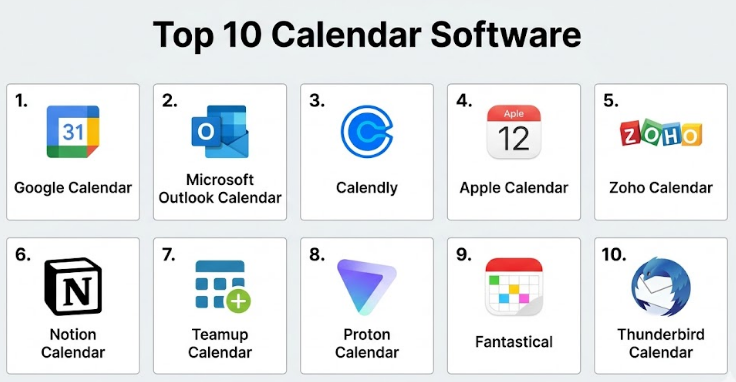
Top 10 Calendar Software
#1 — Google Calendar
Short description :
Google Calendar is one of the most widely used calendar platforms for individuals, teams, schools, startups, and enterprises. It works closely with Gmail, Google Meet, Google Workspace, Android, and many third-party tools. It is easy to use, quick to adopt, and strong for shared scheduling. Teams can create multiple calendars, manage events, invite guests, add video meetings, and sync across devices. It is best for users already working inside the Google ecosystem.
Key Features
- Shared calendars for teams and departments
- Event invites, reminders, and recurring meetings
- Google Meet integration
- Gmail event detection and calendar suggestions
- Multiple calendar views
- Mobile apps for iOS and Android
- Integration with Google Workspace admin controls
Pros
- Very easy to use for personal and business scheduling
- Strong integration with Gmail, Meet, and Workspace
- Reliable sync across web and mobile devices
Cons
- Advanced booking features may require additional tools or Workspace features
- Best experience is within Google ecosystem
- Privacy controls depend on correct calendar-sharing setup
Platforms / Deployment
Web / iOS / Android
Cloud
Security & Compliance
Google accounts support MFA. Google Workspace provides admin controls, access management, and security settings. Enterprise compliance details depend on Google Workspace plan and configuration.
Integrations & Ecosystem
Google Calendar has a strong ecosystem because many business tools support it by default.
- Gmail
- Google Meet
- Google Workspace
- Slack
- Zoom
- CRM and sales tools
- Project management tools
Support & Community
Google Calendar has strong documentation, large community adoption, and support through Google Workspace plans. Free users mainly rely on help documentation and community resources.
#2 — Microsoft Outlook Calendar
Short description :
Microsoft Outlook Calendar is a strong calendar solution for businesses using Microsoft 365. It is widely used by enterprises, government teams, education institutions, and professional services firms. It works closely with Outlook email, Microsoft Teams, Exchange, OneDrive, and Microsoft 365 admin controls. It supports shared calendars, meeting rooms, availability checking, recurring meetings, and enterprise-grade scheduling workflows. It is especially strong for organizations already using Microsoft tools.
Key Features
- Calendar integration with Outlook email
- Microsoft Teams meeting scheduling
- Shared calendars and resource booking
- Availability lookup for internal users
- Recurring events and meeting invites
- Enterprise admin and access controls
- Desktop, web, and mobile experience
Pros
- Excellent fit for Microsoft 365 organizations
- Strong enterprise scheduling and admin capabilities
- Reliable for large teams and formal business environments
Cons
- Can feel complex for simple users
- Best experience requires Microsoft 365 ecosystem
- Some advanced features depend on business plans
Platforms / Deployment
Web / Windows / macOS / iOS / Android
Cloud / Hybrid depending on Microsoft environment
Security & Compliance
Microsoft 365 supports MFA, SSO, admin controls, encryption, audit capabilities, and enterprise security policies. Compliance availability depends on the Microsoft 365 plan and configuration.
Integrations & Ecosystem
Outlook Calendar integrates deeply with Microsoft tools and many third-party business applications.
- Microsoft Teams
- Outlook email
- Exchange
- OneDrive
- SharePoint
- CRM tools
- Productivity and workflow platforms
Support & Community
Microsoft provides documentation, admin support, enterprise support plans, and a large professional community. Support depth depends on the Microsoft 365 subscription.
#3 — Calendly
Short description :
Calendly is a scheduling automation platform designed to reduce back-and-forth communication while booking meetings. It is popular with sales teams, recruiters, consultants, customer success teams, founders, coaches, and service businesses. Users can create booking links, define availability, add buffer times, set meeting rules, and connect calendars. Calendly is not only a calendar viewer; it is more focused on booking automation and external scheduling workflows.
Key Features
- Booking links for meetings and appointments
- Availability rules and buffer times
- Round-robin scheduling for teams
- Calendar conflict detection
- Automated reminders and confirmations
- Video meeting integrations
- Team scheduling workflows
Pros
- Reduces manual scheduling work
- Strong for client meetings, demos, interviews, and consultations
- Easy for external users to book time
Cons
- Not a full calendar replacement for everyone
- Advanced team features may require paid plans
- Works best when connected to Google or Microsoft calendars
Platforms / Deployment
Web / iOS / Android
Cloud
Security & Compliance
Calendly supports common business security features such as account security controls and integrations with enterprise identity options on selected plans. Specific compliance availability depends on plan and configuration.
Integrations & Ecosystem
Calendly connects well with calendars, video tools, CRM systems, and workflow automation platforms.
- Google Calendar
- Outlook Calendar
- Microsoft Teams
- Zoom
- Salesforce
- HubSpot
- Payment and automation tools
Support & Community
Calendly offers documentation, onboarding resources, and support options based on plan. It has strong adoption among business users and many practical tutorials are available.
#4 — Apple Calendar
Short description :
Apple Calendar is the default calendar application for Apple users. It is simple, clean, and deeply integrated with macOS, iPhone, iPad, Siri, iCloud, and Apple notifications. It is best for individuals, families, freelancers, and small teams using Apple devices. It supports multiple calendars, recurring events, reminders, invitations, and calendar subscriptions. It is not usually the first choice for large enterprise scheduling, but it works well for personal productivity.
Key Features
- Native calendar app for Apple devices
- iCloud calendar sync
- Shared calendars
- Event alerts and recurring events
- Siri and Apple ecosystem integration
- Calendar subscriptions
- Simple day, week, month, and list views
Pros
- Excellent experience for Apple users
- Clean and simple interface
- Strong device-level integration
Cons
- Limited advanced business scheduling features
- Best suited for Apple ecosystem users
- Less powerful for enterprise admin needs
Platforms / Deployment
macOS / iOS / iPadOS / Web via iCloud
Cloud
Security & Compliance
Apple accounts support security features such as two-factor authentication. Business compliance and enterprise admin controls are limited compared to dedicated enterprise calendar platforms.
Integrations & Ecosystem
Apple Calendar works well inside the Apple ecosystem and can also connect with common calendar accounts.
- iCloud
- Siri
- Apple Mail
- Google Calendar account sync
- Microsoft account sync
- Calendar subscriptions
Support & Community
Apple provides documentation and device-level support. Community support is strong because Apple Calendar is widely used by personal and professional users.
#5 — Zoho Calendar
Short description :
Zoho Calendar is part of the broader Zoho productivity and business software ecosystem. It is useful for small businesses, teams, and organizations already using Zoho Mail, Zoho CRM, Zoho Projects, or Zoho Workplace. It supports personal calendars, group calendars, appointment scheduling, event sharing, and business collaboration. It is a practical choice for companies that want calendar functionality connected to affordable business software.
Key Features
- Personal and group calendars
- Event scheduling and invitations
- Zoho Mail integration
- Calendar sharing
- Appointment scheduling support
- Team collaboration features
- Integration with Zoho ecosystem apps
Pros
- Good fit for Zoho users
- Useful for SMBs and growing teams
- Works well with Zoho business applications
Cons
- Less popular than Google or Microsoft Calendar
- Best value is inside the Zoho ecosystem
- Some advanced integrations may need setup effort
Platforms / Deployment
Web / iOS / Android
Cloud
Security & Compliance
Zoho provides business account security features such as MFA and admin controls across its ecosystem. Specific compliance coverage depends on product plan and business configuration.
Integrations & Ecosystem
Zoho Calendar works best with Zoho’s full business software suite.
- Zoho Mail
- Zoho CRM
- Zoho Projects
- Zoho Workplace
- External calendar sync
- Business productivity tools
Support & Community
Zoho offers help documentation, business support, and community resources. Support experience can vary by plan and region.
#6 — Notion Calendar
Short description :
Notion Calendar is designed for users who want calendar planning connected with notes, documents, tasks, and workspace context. It is useful for individuals, creators, startups, product teams, and knowledge workers using Notion for planning. Instead of only showing events, it helps connect time blocks with work pages and project context. It is best for users who want their calendar to support planning, focus, and documentation workflows.
Key Features
- Calendar view connected with Notion workspace
- Scheduling visibility across work items
- Clean planning-focused interface
- Google Calendar connection
- Event and task context
- Useful for content, product, and personal planning
- Lightweight productivity workflow support
Pros
- Strong fit for Notion users
- Helps connect meetings with work context
- Clean and modern planning experience
Cons
- Not ideal as a full enterprise calendar replacement
- Best value depends on Notion usage
- Microsoft calendar support may be more limited depending on current capabilities
Platforms / Deployment
Web / macOS / Windows / iOS
Cloud
Security & Compliance
Security and compliance depend on Notion account plan and workspace configuration. For specific enterprise compliance requirements, buyers should validate directly during procurement.
Integrations & Ecosystem
Notion Calendar is strongest when used with Notion and connected calendars.
- Notion workspace
- Google Calendar
- Productivity workflows
- Planning pages
- Team documentation
- Task planning systems
Support & Community
Notion has strong documentation, community templates, and a large creator ecosystem. Enterprise support depends on Notion plan.
#7 — Teamup Calendar
Short description :
Teamup Calendar is a shared calendar platform built for groups, operations, schedules, and visibility across teams. It is useful for schools, healthcare teams, event teams, logistics groups, community organizations, and operations-heavy businesses. Teamup focuses on shareable calendars, access control, sub-calendars, and easy schedule visibility. It is a good choice when multiple people need to view or update schedules without complex enterprise software.
Key Features
- Shared team calendars
- Multiple sub-calendars
- Permission-based access
- Calendar embedding
- Custom views
- Event fields and structured schedule data
- Useful for group coordination
Pros
- Strong for shared operational calendars
- Flexible access permissions
- Easy to use for non-technical teams
Cons
- Less focused on personal productivity
- Not as broad as Google or Microsoft ecosystems
- Advanced workflow automation may require external tools
Platforms / Deployment
Web / iOS / Android
Cloud
Security & Compliance
Teamup provides access controls and sharing permissions. Specific certifications and compliance details are not publicly stated with enough certainty for all plans.
Integrations & Ecosystem
Teamup is useful for teams that need calendar sharing and publishing.
- Calendar sharing
- Website embedding
- Calendar subscription feeds
- External calendar viewing
- Team schedule publishing
- Operational planning workflows
Support & Community
Teamup provides documentation and support resources. Community size is smaller than Google or Microsoft but practical for shared scheduling use cases.
#8 — Proton Calendar
Short description :
Proton Calendar is a privacy-focused calendar tool from Proton. It is designed for users who value privacy, encrypted services, and secure personal productivity. It works well for individuals, privacy-conscious professionals, and teams already using Proton Mail or other Proton services. Proton Calendar focuses more on privacy and secure scheduling than large enterprise workflow automation. It is a strong option for users who want calendar basics with privacy as a priority.
Key Features
- Privacy-focused calendar experience
- Integration with Proton Mail
- Event creation and reminders
- Calendar sharing options
- Mobile and web access
- Encrypted service ecosystem
- Simple personal scheduling
Pros
- Strong privacy-first positioning
- Good fit for Proton Mail users
- Clean interface for personal calendar use
Cons
- Smaller integration ecosystem than Google or Microsoft
- Less suitable for complex enterprise scheduling
- Advanced team scheduling may be limited
Platforms / Deployment
Web / iOS / Android
Cloud
Security & Compliance
Proton is known for privacy-focused services and encryption-oriented design. Specific enterprise compliance availability depends on Proton plan and service configuration.
Integrations & Ecosystem
Proton Calendar is best used within the Proton ecosystem.
- Proton Mail
- Proton account ecosystem
- Calendar sharing
- Mobile notifications
- Privacy-focused workflows
- External calendar import/export options may vary
Support & Community
Proton provides documentation and account support. It also has a strong privacy-focused user community.
#9 — Fantastical
Short description :
Fantastical is a premium calendar app known for a polished user experience, natural language event creation, and strong Apple ecosystem support. It is useful for professionals, executives, consultants, creators, and productivity-focused users who want a more advanced personal calendar app. It connects with existing calendar accounts and improves the user interface, scheduling experience, reminders, and task visibility. It is especially popular among macOS and iOS users.
Key Features
- Natural language event creation
- Beautiful calendar interface
- Multiple calendar account support
- Task and reminder visibility
- Calendar sets and views
- Scheduling features
- Strong Apple device experience
Pros
- Excellent user experience
- Strong productivity features for power users
- Great fit for Apple-heavy workflows
Cons
- Premium pricing may not suit casual users
- Less enterprise-focused than Microsoft or Google
- Best experience is on Apple platforms
Platforms / Deployment
macOS / iOS / iPadOS / Apple Watch
Cloud-connected app experience
Security & Compliance
Security depends partly on the connected calendar accounts. Specific enterprise compliance certifications are not publicly stated with enough certainty.
Integrations & Ecosystem
Fantastical connects with common calendar services and productivity workflows.
- Google Calendar
- Microsoft accounts
- iCloud
- Tasks and reminders
- Video meeting links
- Apple ecosystem features
Support & Community
Fantastical has documentation, customer support, and a strong user base among productivity-focused Apple users.
#10 — Thunderbird Calendar
Short description :
Thunderbird Calendar is part of the Thunderbird email client experience and is useful for users who want email and calendar management in a desktop-focused, open-source environment. It is suitable for individuals, technical users, small teams, and privacy-conscious users who prefer more control over their setup. It supports calendar management, invitations, tasks, and connections to external calendar services. It is not as polished as premium SaaS tools, but it offers flexibility and openness.
Key Features
- Calendar built into Thunderbird
- Email and calendar in one desktop app
- Support for external calendar accounts
- Event invitations and reminders
- Task management support
- Open-source ecosystem
- Useful for technical and privacy-conscious users
Pros
- Open-source and flexible
- Good for users who prefer desktop tools
- Works with multiple email and calendar setups
Cons
- Less polished than modern SaaS calendar tools
- Setup may require technical comfort
- Enterprise support is limited compared to commercial platforms
Platforms / Deployment
Windows / macOS / Linux
Desktop / Self-managed client setup
Security & Compliance
Security depends on the configured email/calendar provider and user setup. Specific SaaS compliance certifications are not applicable in the same way as cloud platforms.
Integrations & Ecosystem
Thunderbird Calendar works through account connections and open standards.
- Email account calendars
- External calendar services
- Calendar subscriptions
- Add-ons
- Task management
- Desktop productivity workflows
Support & Community
Thunderbird has documentation and a large open-source community. Formal enterprise support is more limited compared with commercial SaaS vendors.
Comparison Table
| Tool Name | Best For | Platform(s) Supported | Deployment | Standout Feature | Public Rating |
|---|---|---|---|---|---|
| Google Calendar | Individuals, SMBs, schools, Google Workspace teams | Web, iOS, Android | Cloud | Simple shared scheduling inside Google ecosystem | N/A |
| Microsoft Outlook Calendar | Enterprises and Microsoft 365 teams | Web, Windows, macOS, iOS, Android | Cloud / Hybrid | Enterprise scheduling with Outlook and Teams | N/A |
| Calendly | Sales, recruiting, consultants, client booking | Web, iOS, Android | Cloud | Booking links and scheduling automation | N/A |
| Apple Calendar | Apple users and personal productivity | macOS, iOS, iPadOS, Web | Cloud | Native Apple ecosystem experience | N/A |
| Zoho Calendar | SMBs using Zoho apps | Web, iOS, Android | Cloud | Calendar connected with Zoho business suite | N/A |
| Notion Calendar | Knowledge workers and Notion users | Web, macOS, Windows, iOS | Cloud | Calendar connected with workspace context | N/A |
| Teamup Calendar | Teams needing shared operational schedules | Web, iOS, Android | Cloud | Permission-based shared calendars | N/A |
| Proton Calendar | Privacy-focused individuals and teams | Web, iOS, Android | Cloud | Privacy-focused calendar experience | N/A |
| Fantastical | Apple power users and productivity professionals | macOS, iOS, iPadOS, Apple Watch | Cloud-connected app | Natural language scheduling and polished UX | N/A |
| Thunderbird Calendar | Open-source and desktop-first users | Windows, macOS, Linux | Self-managed client setup | Open-source email and calendar workflow | N/A |
Evaluation & Calendar Software
| Tool Name | Core (25%) | Ease (15%) | Integrations (15%) | Security (10%) | Performance (10%) | Support (10%) | Value (15%) | Weighted Total (0–10) |
|---|---|---|---|---|---|---|---|---|
| Google Calendar | 9 | 9 | 9 | 8 | 9 | 8 | 9 | 8.75 |
| Microsoft Outlook Calendar | 9 | 8 | 9 | 9 | 9 | 9 | 8 | 8.65 |
| Calendly | 8 | 9 | 9 | 8 | 8 | 8 | 8 | 8.30 |
| Apple Calendar | 7 | 9 | 7 | 8 | 9 | 7 | 9 | 8.00 |
| Zoho Calendar | 7 | 8 | 8 | 8 | 8 | 7 | 8 | 7.65 |
| Notion Calendar | 7 | 8 | 7 | 7 | 8 | 7 | 7 | 7.30 |
| Teamup Calendar | 8 | 8 | 7 | 7 | 8 | 7 | 8 | 7.60 |
| Proton Calendar | 7 | 8 | 6 | 9 | 8 | 7 | 7 | 7.35 |
| Fantastical | 8 | 9 | 8 | 7 | 9 | 8 | 7 | 8.05 |
| Thunderbird Calendar | 7 | 6 | 7 | 7 | 7 | 7 | 9 | 7.10 |
These scores are comparative, not official product ratings. They are based on practical fit, feature depth, ecosystem strength, usability, and likely buyer value. A higher score does not mean the tool is best for every organization. For example, Proton Calendar may score lower on integrations but can still be the better choice for privacy-focused users. Calendly is excellent for booking automation but may not replace a full calendar system.
Which Calendar Software
Solo / Freelancer
Solo users usually need simple scheduling, reminders, mobile access, and easy calendar sharing. Google Calendar, Apple Calendar, Fantastical, Proton Calendar, and Notion Calendar are strong choices depending on the user’s ecosystem.
Choose Google Calendar if you want free, simple, widely supported scheduling. Choose Apple Calendar if you use iPhone and Mac every day. Choose Fantastical if you want a polished premium calendar experience. Choose Proton Calendar if privacy is your main concern.
SMB
Small and mid-sized businesses need shared calendars, meeting invites, external scheduling, user management, and integration with email and video meetings. Google Calendar, Microsoft Outlook Calendar, Zoho Calendar, Calendly, and Teamup Calendar are practical options.
Google Calendar is strong for Google Workspace teams. Microsoft Outlook Calendar is better for Microsoft 365 teams. Calendly is useful when the business books many external meetings. Zoho Calendar works well for companies already using Zoho apps.
Mid-Market
Mid-market teams usually need more structure, admin control, availability management, team scheduling, integrations, and reliable support. Microsoft Outlook Calendar and Google Calendar are usually the safest choices for core business calendar infrastructure.
Calendly can be added for sales, recruiting, onboarding, and customer meetings. Teamup Calendar can be useful for operations teams that need shared schedule visibility. Notion Calendar may help product, content, and knowledge teams that already work inside Notion.
Enterprise
Enterprises need security, compliance, admin controls, user provisioning, support, audit capabilities, integrations, and high reliability. Microsoft Outlook Calendar and Google Calendar are the strongest enterprise choices.
Microsoft Outlook Calendar fits organizations using Microsoft 365, Teams, Exchange, and enterprise identity systems. Google Calendar fits organizations using Google Workspace, Gmail, Google Meet, and Google admin controls. Calendly can support enterprise scheduling automation when integrated properly.
Budget vs Premium
For budget-conscious users, Google Calendar, Apple Calendar, Zoho Calendar, and Thunderbird Calendar are good starting points. These tools provide useful scheduling without requiring heavy investment.
Premium users may prefer Fantastical for personal productivity, Calendly for booking automation, or Microsoft 365 and Google Workspace plans for team and enterprise needs. Premium value depends on whether the tool saves time, reduces scheduling friction, and integrates with the business stack.
Feature Depth vs Ease of Use
Google Calendar and Apple Calendar are very easy to use. Microsoft Outlook Calendar is deeper but may feel more complex. Calendly is simple for booking workflows but not a complete calendar replacement. Fantastical offers strong usability with advanced personal productivity features.
If your team is non-technical, choose simple tools first. If your organization has complex scheduling, permissions, and enterprise workflows, choose platforms with deeper admin capabilities.
Integrations & Scalability-
Google Calendar and Microsoft Outlook Calendar lead in broad integrations. Calendly is strong for sales, recruiting, and customer-facing scheduling. Zoho Calendar is best inside the Zoho ecosystem. Notion Calendar is useful for planning workflows connected to workspace content.
For scaling teams, calendar software should connect with email, video meetings, CRM, project management, HR tools, and communication platforms.
Security & Compliance Needs
Security-focused buyers should look for MFA, SSO, admin controls, calendar-sharing permissions, audit capabilities, encryption, and data governance. Microsoft Outlook Calendar and Google Calendar are strong choices for enterprise security needs.
Privacy-focused individuals may prefer Proton Calendar. Open-source users may consider Thunderbird Calendar, but compliance depends heavily on the connected service and internal setup.
Frequently Asked Questions
1. What is calendar software?
Calendar software is a digital tool used to schedule meetings, manage events, set reminders, share availability, and coordinate time. It helps individuals and teams avoid conflicts and stay organized.
2. How much does calendar software usually cost?
Pricing depends on the tool. Some calendar tools are free for personal use, while business plans may be included in productivity suites or charged monthly per user. Advanced scheduling, admin controls, and automation features usually require paid plans.
3. Is Google Calendar enough for business use?
Google Calendar is enough for many individuals, SMBs, schools, and Google Workspace teams. However, larger organizations may need stronger admin policies, booking workflows, compliance controls, or advanced scheduling tools.
4. What is the difference between calendar software and scheduling software?
Calendar software helps manage events and time. Scheduling software focuses more on booking automation, availability rules, appointment pages, routing, reminders, and external meeting coordination.
5. Which calendar software is best for enterprise teams?
Microsoft Outlook Calendar and Google Calendar are strong enterprise choices because they connect with larger productivity ecosystems. The better option depends on whether the organization uses Microsoft 365 or Google Workspace.
6. What are common mistakes when choosing calendar software?
Common mistakes include ignoring integrations, allowing too many unmanaged shared calendars, overlooking security settings, choosing a tool without mobile support, and failing to train users on calendar-sharing rules.
7. Is calendar software secure?
Most major calendar platforms include account security features such as MFA, encryption, and access controls. However, security depends on correct configuration, user permissions, admin policies, and the selected plan.
8. Can calendar software scale for large teams?
Yes, enterprise-ready calendar platforms can scale for large teams. Buyers should check admin controls, identity management, room booking, shared calendars, audit features, support options, and integration depth.
9. What integrations should calendar software support?
Important integrations include email, video meetings, CRM, chat, project management, HR systems, task tools, workflow automation, and mobile notifications. Integration needs depend on the team’s daily workflow.
10. How hard is it to switch calendar software?
Switching can be simple for individuals but harder for teams. The main challenges are importing events, reconnecting integrations, updating booking links, training users, and managing shared calendar permissions.
Conclusion
Calendar software is no longer just a simple date and reminder tool. It has become a core part of modern work planning, team coordination, client communication, and productivity management. The best choice depends on your ecosystem, team size, security needs, integration requirements, and scheduling complexity. Google Calendar and Microsoft Outlook Calendar are strong general-purpose choices for most teams. Calendly is excellent for booking automation. Apple Calendar and Fantastical work well for Apple users. Proton Calendar is useful for privacy-focused users, while Teamup and Thunderbird serve more specific scheduling needs.
