Introduction
UI Design Tools help designers create the visual layout, interface screens, prototypes, components, and interaction flows for websites, mobile apps, SaaS products, dashboards, and digital platforms. In simple words, these tools help teams design how a product looks and feels before developers build it.
UI design tools matter because modern products need fast iteration, consistent branding, accessible layouts, responsive design, reusable components, and smooth collaboration between designers, developers, product managers, and stakeholders.
Best for: UI/UX designers, product teams, SaaS startups, agencies, frontend teams, and enterprises building digital products.
Not ideal for: teams that only need simple image editing, static graphics, or basic presentation-style mockups.
Key Trends in UI Design Tools
- AI-assisted design workflows are becoming common for layout suggestions, content generation, wireframes, and repetitive design tasks.
- Real-time collaboration is now expected, especially for remote product and design teams.
- Design systems and reusable components are becoming central to faster product delivery.
- Developer handoff is improving with inspect modes, code snippets, variables, and design token workflows.
- Accessibility checks are becoming more important for contrast, keyboard usability, and inclusive design.
- Cloud-first design platforms are becoming more popular than traditional offline-only tools.
- Prototyping is becoming more advanced, with interactive states, animations, and realistic product flows.
- Cross-platform design support is important for teams building web, iOS, Android, and desktop interfaces.
- Security and admin controls matter more for enterprise design teams.
- Plugin ecosystems are becoming a key differentiator for productivity and automation.
How We Selected These Tools
- Market adoption and recognition among UI/UX professionals.
- Feature completeness for interface design, prototyping, and collaboration.
- Support for design systems, reusable components, and style libraries.
- Developer handoff capabilities.
- Performance and reliability for large design files.
- Integration ecosystem with product, engineering, and collaboration tools.
- Fit for freelancers, SMBs, agencies, and enterprises.
- Ease of learning and day-to-day usability.
- Security and team management options.
- Long-term relevance for modern product design workflows.
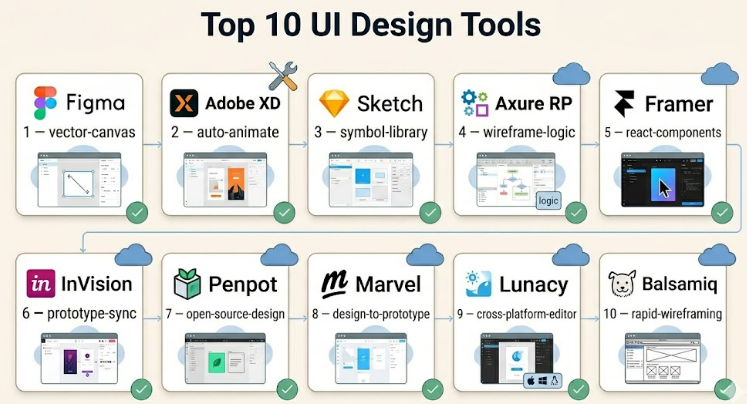
Top 10 UI Design Tools
#1 — Figma
Short description :
Figma is one of the most popular UI design tools for collaborative product design. It allows designers, developers, product managers, and stakeholders to work together in real time. Teams use it for wireframes, high-fidelity UI screens, prototypes, components, and design systems. Figma is especially strong for cloud-based collaboration and modern product workflows. It is suitable for freelancers, startups, agencies, and large enterprises.
Key Features
- Real-time design collaboration.
- Component libraries and shared styles.
- Prototyping and interactive flows.
- Dev Mode for developer handoff.
- Variables for design systems and themes.
- Large plugin and template ecosystem.
- Browser-based access with desktop apps.
Pros
- Easy collaboration across teams.
- Strong design system support.
- Large community and plugin ecosystem.
Cons
- Advanced enterprise features can be costly.
- Large files may need careful organization.
- Requires internet for the best experience.
Platforms / Deployment
Web / Windows / macOS
Cloud
Security & Compliance
SSO/SAML, MFA, RBAC, encryption, and enterprise admin controls are available in higher-tier plans. Specific compliance should be verified by buyers.
Integrations & Ecosystem
Figma has a strong ecosystem for product design, developer handoff, documentation, and collaboration.
- Jira
- Slack
- GitHub workflows
- Storybook workflows
- Design token plugins
- Accessibility plugins
Support & Community
Figma has strong documentation, tutorials, templates, community files, and enterprise support options. Its community is one of the strongest in the UI design space.
#2 — Adobe XD
Short description :
Adobe XD is a UI/UX design and prototyping tool used for websites, mobile apps, and digital product interfaces. It is useful for designers already working within the Adobe ecosystem. Adobe XD supports wireframing, UI design, components, interactive prototypes, and design sharing. It works well for creative teams that use Adobe Creative Cloud tools. However, teams should evaluate its current roadmap and product availability before choosing it for long-term use.
Key Features
- UI design and wireframing.
- Interactive prototyping.
- Components and repeat grids.
- Design sharing and review.
- Integration with Adobe Creative Cloud.
- Voice and interaction prototyping options.
- Asset export for developers.
Pros
- Familiar for Adobe users.
- Good for UI design and prototyping.
- Works well with other Adobe tools.
Cons
- Long-term product direction should be verified.
- Collaboration is not as strong as some cloud-first tools.
- Plugin ecosystem is smaller than Figma’s.
Platforms / Deployment
Windows / macOS
Cloud / Desktop
Security & Compliance
Security depends on Adobe account and enterprise plan settings. SSO, admin controls, and enterprise security options may be available. Compliance should be verified.
Integrations & Ecosystem
Adobe XD fits best inside the Adobe Creative Cloud ecosystem.
- Photoshop
- Illustrator
- Creative Cloud Libraries
- Adobe asset workflows
- Prototype sharing
- Developer export workflows
Support & Community
Adobe has broad documentation and support resources. Community strength exists, but current adoption may vary depending on team preference and product roadmap.
#3 — Sketch
Short description :
Sketch is a well-known UI design tool especially popular among macOS users. It has been widely used for interface design, symbols, reusable components, and design systems. Sketch is strong for designers who prefer a native desktop design experience. It also supports collaboration, libraries, prototyping, and developer handoff. It remains a practical choice for Mac-based design teams and agencies.
Key Features
- Native macOS UI design experience.
- Symbols and reusable components.
- Shared libraries.
- Prototyping support.
- Developer handoff features.
- Plugin ecosystem.
- Design system support.
Pros
- Strong performance on macOS.
- Mature UI design workflow.
- Useful for structured component libraries.
Cons
- Limited to macOS for full design editing.
- Real-time collaboration may feel less seamless than cloud-first tools.
- Not ideal for Windows-heavy teams.
Platforms / Deployment
macOS / Web viewing and collaboration
Cloud / Desktop
Security & Compliance
Enterprise security options may vary. Buyers should verify SSO, admin controls, and compliance requirements before purchase.
Integrations & Ecosystem
Sketch has a mature ecosystem of plugins and design workflow integrations.
- Abstract-style version workflows
- Zeplin
- Design system plugins
- Prototyping plugins
- Developer handoff tools
- Asset export workflows
Support & Community
Sketch has strong documentation and a long-standing design community, especially among product designers and agencies using macOS.
#4 — Axure RP
Short description :
Axure RP is a professional wireframing and prototyping tool used for complex UX flows, enterprise applications, dashboards, and logic-based prototypes. It is especially useful when teams need advanced interactions, conditions, variables, forms, and detailed product behavior before development. Axure is more focused on deep prototyping than visual design alone. It is best for UX architects, product teams, and enterprise designers handling complex workflows.
Key Features
- Advanced interactive prototyping.
- Conditional logic and dynamic panels.
- Wireframing and UX documentation.
- Form and data-driven interactions.
- Team collaboration features.
- Prototype sharing.
- Specification support.
Pros
- Excellent for complex prototypes.
- Strong for enterprise workflows.
- Useful for validating detailed product logic.
Cons
- Learning curve can be higher.
- Visual design workflow may feel less modern.
- Not always ideal for quick UI mockups.
Platforms / Deployment
Windows / macOS
Desktop / Cloud sharing
Security & Compliance
Security and compliance details vary by plan. Enterprise buyers should verify SSO, access controls, and data protection requirements.
Integrations & Ecosystem
Axure works best for UX documentation, complex prototyping, and stakeholder review.
- Prototype sharing
- Documentation workflows
- UX research workflows
- Product requirement workflows
- Developer specification workflows
- Team collaboration
Support & Community
Axure has detailed documentation, training resources, and a strong professional UX community, especially among enterprise UX teams.
#5 — Framer
Short description :
Framer is a modern design and prototyping tool used for interactive websites, landing pages, product prototypes, and high-quality visual experiences. It combines design, animation, responsive layouts, and publishing capabilities. Framer is useful for designers who want to create realistic interactive experiences without depending fully on developers. It is especially popular for marketing sites, product demos, and fast interactive design work.
Key Features
- Visual UI design.
- Interactive prototyping.
- Responsive layout tools.
- Animation and transitions.
- Website publishing capabilities.
- Components and reusable elements.
- AI-assisted site creation features.
Pros
- Strong for interactive and polished prototypes.
- Good for landing pages and product sites.
- Fast visual workflow for modern web design.
Cons
- Not always ideal for complex enterprise design systems.
- Some workflows may overlap with website builders.
- Advanced control may require learning Framer-specific concepts.
Platforms / Deployment
Web
Cloud
Security & Compliance
Security features may vary by plan. Enterprise controls and compliance details should be verified before adoption.
Integrations & Ecosystem
Framer works well for web-first design and interactive publishing workflows.
- Figma import workflows
- CMS-style content workflows
- Web publishing
- Animation workflows
- Marketing site workflows
- Collaboration tools
Support & Community
Framer has growing documentation, templates, tutorials, and a strong community among web designers, startup teams, and creative product teams.
#6 — InVision
Short description :
InVision has been known for prototyping, design collaboration, feedback, and design workflow support. Teams have used it for clickable prototypes, stakeholder reviews, and collaborative product design discussions. It has historically supported design communication and workflow alignment. However, buyers should carefully verify current product availability and long-term suitability before selecting it as a new UI design platform. It may still be relevant in teams already using it.
Key Features
- Prototype sharing.
- Design feedback and comments.
- Collaboration workflows.
- Design review support.
- User flow communication.
- Stakeholder presentation.
- Product team alignment.
Pros
- Useful for design review and feedback workflows.
- Familiar to many product teams.
- Good for prototype-based communication.
Cons
- Product roadmap and availability should be verified.
- Not as strong as newer all-in-one design platforms.
- May not be ideal for new long-term adoption.
Platforms / Deployment
Web
Cloud
Security & Compliance
Security and compliance details should be verified directly. If unclear, treat as Not publicly stated.
Integrations & Ecosystem
InVision has traditionally connected with design, collaboration, and product workflows.
- Design file sharing
- Prototype review
- Commenting workflows
- Product collaboration
- Stakeholder feedback
- Presentation workflows
Support & Community
Support and community strength may vary based on current product status. Existing users should review available documentation and support plans.
#7 — Penpot
Short description :
Penpot is an open-source design and prototyping platform created for designers and developers. It is especially useful for teams that want open standards, self-hosting options, and design-development collaboration. Penpot supports UI design, components, layouts, prototyping, and shared design workflows. It is a strong option for teams that prefer open-source tools or want more control over deployment. It is suitable for startups, public sector teams, and technical organizations.
Key Features
- Open-source UI design platform.
- Web-based design workspace.
- Components and reusable assets.
- Prototyping support.
- Developer-friendly approach.
- Self-hosting option.
- Collaboration features.
Pros
- Open-source and flexible.
- Good for teams wanting self-hosting.
- Friendly for designer-developer collaboration.
Cons
- Ecosystem is smaller than Figma.
- Some advanced workflows may still be maturing.
- Enterprise support may require evaluation.
Platforms / Deployment
Web
Cloud / Self-hosted / Hybrid
Security & Compliance
Security depends on deployment model. Self-hosted teams control their own infrastructure. Compliance details are Not publicly stated unless verified.
Integrations & Ecosystem
Penpot is useful for open-source and developer-friendly design workflows.
- Self-hosted workflows
- Open design files
- Developer collaboration
- Prototyping workflows
- Design system workflows
- Community extensions
Support & Community
Penpot has a growing open-source community, documentation, and contributor ecosystem. It is especially appealing to teams that value openness and control.
#8 — Marvel
Short description :
Marvel is a simple UI design, prototyping, and collaboration tool for quickly creating product ideas, wireframes, and interactive mockups. It is useful for startups, designers, educators, and small teams that want a lightweight design workflow. Marvel supports prototyping, user testing workflows, and design sharing. It is less complex than enterprise-heavy platforms, making it easier for non-technical users to understand. It works best for early-stage ideas and simple product validation.
Key Features
- Wireframing and UI mockups.
- Clickable prototypes.
- Design sharing.
- User testing support.
- Team collaboration.
- Simple interface.
- Feedback collection.
Pros
- Easy to learn.
- Good for quick prototypes.
- Useful for early-stage product validation.
Cons
- Less powerful for advanced design systems.
- Not ideal for complex enterprise UI libraries.
- Smaller ecosystem than leading platforms.
Platforms / Deployment
Web
Cloud
Security & Compliance
Security details may vary by plan. Enterprise compliance information should be verified. If uncertain, use Not publicly stated.
Integrations & Ecosystem
Marvel supports simple design and feedback workflows.
- Prototype sharing
- User testing workflows
- Design collaboration
- Stakeholder feedback
- Product validation
- Basic handoff workflows
Support & Community
Marvel provides documentation and support resources. It is known for being approachable for beginners and small teams.
#9 — Lunacy
Short description :
Lunacy is a UI and graphic design tool that supports interface design, vector editing, prototyping, and design assets. It is useful for designers who want a desktop-friendly design tool with support for common UI design workflows. Lunacy can be attractive for teams looking for a lower-cost alternative to more expensive platforms. It supports design files, icons, illustrations, and collaboration features. It is suitable for freelancers, small teams, and budget-conscious users.
Key Features
- UI and vector design tools.
- Support for interface layouts.
- Built-in design assets.
- Prototyping features.
- Collaboration options.
- Desktop application support.
- Design file compatibility workflows.
Pros
- Budget-friendly option.
- Useful desktop design experience.
- Good for freelancers and small teams.
Cons
- Not as widely adopted as Figma.
- Enterprise ecosystem is more limited.
- May not fit advanced design system governance needs.
Platforms / Deployment
Windows / macOS / Linux
Desktop / Cloud collaboration options
Security & Compliance
Security and compliance details are Not publicly stated unless verified by buyers.
Integrations & Ecosystem
Lunacy supports practical design workflows for UI, assets, and collaboration.
- Design file workflows
- Built-in assets
- Icon and illustration libraries
- Team collaboration
- Export workflows
- Prototype workflows
Support & Community
Lunacy has documentation and community support. Its community is smaller than major enterprise design platforms but useful for independent designers and small teams.
#10 — Balsamiq
Short description :
Balsamiq is a wireframing tool focused on low-fidelity UI design. It helps teams quickly sketch product ideas, screen layouts, and user flows without getting distracted by visual polish. Balsamiq is useful in early planning stages when teams need to discuss structure, content, and functionality. It is not meant for high-fidelity UI design or advanced prototyping. It is best for product managers, UX designers, founders, and business teams creating early concepts.
Key Features
- Low-fidelity wireframing.
- Drag-and-drop UI elements.
- Fast screen sketching.
- Simple collaboration.
- Export and sharing options.
- Useful for early product planning.
- Easy learning curve.
Pros
- Very easy to use.
- Great for early-stage ideas.
- Keeps teams focused on structure, not decoration.
Cons
- Not suitable for high-fidelity UI design.
- Limited advanced prototyping.
- Not a full design system platform.
Platforms / Deployment
Web / Windows / macOS
Cloud / Desktop
Security & Compliance
Security details vary by plan. Enterprise buyers should verify access controls and compliance requirements.
Integrations & Ecosystem
Balsamiq fits early-stage product planning and wireframing workflows.
- Product planning workflows
- Wireframe sharing
- Stakeholder feedback
- Export workflows
- Documentation workflows
- Early UX collaboration
Support & Community
Balsamiq has clear documentation, learning resources, and a long-standing user base among product managers, UX teams, and business users.
Comparison Table (Top 10)
| Tool Name | Best For | Platform(s) Supported | Deployment | Standout Feature | Public Rating |
|---|---|---|---|---|---|
| Figma | Collaborative UI design teams | Web, Windows, macOS | Cloud | Real-time collaboration and design systems | N/A |
| Adobe XD | Adobe ecosystem users | Windows, macOS | Cloud / Desktop | UI design with Adobe workflow support | N/A |
| Sketch | Mac-based design teams | macOS, Web viewing | Cloud / Desktop | Mature macOS design workflow | N/A |
| Axure RP | Complex UX prototypes | Windows, macOS | Desktop / Cloud sharing | Advanced logic-based prototyping | N/A |
| Framer | Interactive web design | Web | Cloud | High-quality interactive web prototypes | N/A |
| InVision | Prototype review and feedback | Web | Cloud | Design collaboration and feedback | N/A |
| Penpot | Open-source design teams | Web | Cloud / Self-hosted / Hybrid | Open-source UI design platform | N/A |
| Marvel | Simple prototyping | Web | Cloud | Fast lightweight prototypes | N/A |
| Lunacy | Budget-friendly UI design | Windows, macOS, Linux | Desktop / Cloud | Affordable desktop UI design | N/A |
| Balsamiq | Low-fidelity wireframing | Web, Windows, macOS | Cloud / Desktop | Fast early-stage wireframes | N/A |
Evaluation & UI Design Tools
| Tool Name | Core (25%) | Ease (15%) | Integrations (15%) | Security (10%) | Performance (10%) | Support (10%) | Value (15%) | Weighted Total (0–10) |
|---|---|---|---|---|---|---|---|---|
| Figma | 9 | 9 | 9 | 8 | 8 | 9 | 8 | 8.65 |
| Adobe XD | 7 | 8 | 8 | 8 | 8 | 8 | 7 | 7.60 |
| Sketch | 8 | 8 | 8 | 7 | 8 | 8 | 7 | 7.70 |
| Axure RP | 8 | 6 | 7 | 7 | 8 | 8 | 7 | 7.30 |
| Framer | 8 | 8 | 7 | 7 | 8 | 8 | 8 | 7.75 |
| InVision | 6 | 7 | 6 | 6 | 7 | 6 | 6 | 6.35 |
| Penpot | 7 | 7 | 7 | 7 | 7 | 7 | 9 | 7.35 |
| Marvel | 6 | 9 | 6 | 6 | 7 | 7 | 7 | 6.95 |
| Lunacy | 7 | 8 | 6 | 6 | 8 | 7 | 9 | 7.35 |
| Balsamiq | 6 | 10 | 5 | 6 | 8 | 8 | 8 | 7.20 |
These scores are comparative and should not be treated as fixed rankings for every team. A tool with a lower total may still be the best choice for a specific use case. For example, Balsamiq is excellent for early wireframes, while Figma is stronger for complete collaborative UI design. Always validate tools through real project testing.
Which UI Design Tool Is Right for You?
Solo / Freelancer
Freelancers usually need speed, affordability, and easy sharing. Figma, Lunacy, Framer, and Balsamiq are practical choices depending on the work type. Figma is best for modern UI projects, Framer is strong for web-focused prototypes, Lunacy is useful for budget-conscious design, and Balsamiq is great for quick wireframes.
SMB
Small and medium businesses should choose tools that support collaboration without too much setup. Figma is often the safest all-round choice. Marvel can work for simple prototypes, while Framer is useful for marketing sites and interactive web experiences. SMBs should avoid overly complex tools unless they have advanced UX needs.
Mid-Market
Mid-market companies usually need reusable components, design systems, stakeholder review, and developer handoff. Figma, Sketch, Framer, and Axure can all be useful depending on workflow. If the team handles complex products, Axure may be helpful for logic-heavy prototypes. If the team needs scalable collaboration, Figma is usually easier to standardize.
Enterprise
Enterprises should focus on security, admin controls, scalability, collaboration, design systems, and governance. Figma, Sketch, Axure, and Penpot may fit different enterprise needs. Teams should check SSO, role permissions, audit controls, compliance, file management, and integration with engineering workflows before making a decision.
Budget vs Premium
Budget-focused teams can consider Lunacy, Penpot, Balsamiq, or lightweight plans from major platforms. Premium tools are better when teams need stronger collaboration, enterprise control, design systems, support, and integrations. The right decision depends on whether the team needs simple design, advanced prototyping, or complete product design workflows.
Feature Depth vs Ease of Use
Balsamiq and Marvel are easier for beginners. Figma offers a strong balance between ease and depth. Axure has more advanced prototyping power but requires more learning. Framer is powerful for interactive web design, while Sketch remains strong for Mac-based UI teams.
Integrations & Scalability-
For scalable teams, integrations matter. Figma, Sketch, and Framer offer strong workflow connections, while Penpot is useful for open-source and self-hosted needs. Teams should check integrations with project management, developer handoff, design systems, documentation, and collaboration tools.
Security & Compliance Needs
Security-focused buyers should verify SSO, MFA, RBAC, encryption, audit logs, data residency, and compliance documentation. Enterprises should involve IT and security teams before adopting any UI design platform. If details are unclear, mark them as Not publicly stated during evaluation.
Frequently Asked Questions (FAQs)
1. What is a UI Design Tool?
A UI Design Tool helps designers create visual interfaces for apps, websites, dashboards, and software products. It is used to design screens, layouts, buttons, forms, navigation, and interactive flows before development begins.
2. How is a UI Design Tool different from a graphic design tool?
A graphic design tool focuses on visuals like posters, images, branding, and marketing assets. A UI design tool focuses on product screens, user flows, components, prototypes, responsive layouts, and developer handoff.
3. Which UI Design Tool is best for beginners?
Figma, Balsamiq, Marvel, and Lunacy are beginner-friendly options. Balsamiq is best for simple wireframes, while Figma is better for full UI design and collaboration.
4. What pricing models do UI Design Tools usually use?
Most UI design tools use subscription pricing based on users, teams, editors, or enterprise seats. Some tools also offer free plans, open-source options, or desktop licenses. Pricing should always be checked before purchase.
5. How long does onboarding take?
Simple tools can be learned in a few days, while advanced platforms may take longer. Teams using design systems, libraries, and developer handoff should plan onboarding, naming rules, file structure, and team training.
6. What are common mistakes when choosing a UI Design Tool?
Common mistakes include choosing only by popularity, ignoring developer handoff, not checking collaboration needs, skipping security review, and failing to test the tool with a real project before buying.
7. Are UI Design Tools secure for enterprise teams?
Many major tools offer enterprise security controls, but buyers should verify SSO, MFA, RBAC, encryption, audit logs, and compliance documentation. Security should be checked before storing sensitive product designs.
8. Can UI Design Tools scale for large teams?
Yes, but scalability depends on file organization, design systems, permissions, naming standards, and team governance. A tool alone cannot solve design chaos without good process and ownership.
9. Do UI Design Tools support developer handoff?
Most modern UI design tools support developer handoff through inspect panels, specs, measurements, assets, comments, and export options. Advanced teams may also use design tokens and component documentation tools.
10. What are the best alternatives to Figma?
Common alternatives include Sketch, Penpot, Adobe XD, Framer, Lunacy, and Axure RP. The best alternative depends on whether the team needs open-source control, desktop design, advanced prototyping, or web publishing.
Conclusion
UI Design Tools are important for building clear, consistent, and user-friendly digital products. The best tool depends on the team’s workflow, product complexity, budget, collaboration style, security needs, and design maturity. Figma is a strong all-round choice for modern collaborative UI design, while Sketch remains useful for Mac-based teams. Axure is strong for complex prototypes, Framer is excellent for interactive web experiences, Penpot is attractive for open-source and self-hosted needs, and Balsamiq is ideal for simple wireframing.
