Introduction
Digital Safety Monitoring Tools help parents, schools, organizations, and guardians protect users from online risks such as harmful content, cyberbullying, unsafe searches, screen overuse, suspicious messages, inappropriate websites, online predators, app misuse, and risky digital behavior. In simple words, these tools help monitor and manage how children, students, employees, or community users interact with digital devices, websites, apps, and online platforms.
These tools are becoming important because digital life now includes smartphones, tablets, laptops, social media, gaming, messaging apps, search engines, video platforms, school devices, and online learning tools. Without proper visibility, families and institutions may not notice risks until they become serious. A good digital safety tool gives alerts, reports, filters, controls, and guidance so adults can take timely action.
Real-world use cases include:
- Monitoring children’s online activity and screen time
- Blocking unsafe websites and inappropriate content
- Detecting cyberbullying, self-harm signals, or risky messages
- Managing school-issued devices and student browsing
- Setting app limits and bedtime schedules
- Protecting users from scams, strangers, or suspicious links
- Supporting safer digital habits at home and school
Buyers should evaluate:
- Web filtering and content blocking
- App monitoring and screen-time control
- Social media and messaging alerts
- Cyberbullying and self-harm risk detection
- Location tracking and device visibility
- Parent, guardian, or admin dashboard
- School and classroom safety features
- Privacy and data protection practices
- Device and platform compatibility
- Ease of setup and daily use
- Reporting and alert quality
- Pricing, support, and customer guidance
Best for: parents, schools, teachers, guardians, child safety teams, education administrators, family safety users, youth programs, and organizations that need safer digital experiences for children, students, or supervised users.
Not ideal for: adults who need full personal privacy, workplaces that only need standard endpoint security, or families and schools without clear digital safety rules. These tools should be used responsibly, with transparency and respect for privacy wherever possible.
Key Trends in Digital Safety Monitoring Tools
- AI-assisted risk detection: Many tools now look for concerning signals such as bullying, self-harm language, explicit content, violence, or risky conversations.
- More focus on mental health signals: Digital safety is no longer only about blocking websites. It also includes emotional wellbeing, online harassment, and crisis indicators.
- Cross-device monitoring: Families and schools need visibility across phones, laptops, tablets, browsers, apps, and school-managed devices.
- Screen-time balance: Digital safety tools increasingly include healthy usage limits, bedtime schedules, app controls, and activity summaries.
- School safety dashboards: Education-focused tools are giving administrators better visibility into student searches, browsing, documents, and online risk patterns.
- Privacy-aware monitoring: Responsible buyers are paying more attention to what data is collected, how long it is stored, and who can access it.
- Real-time alerts: Parents and schools want urgent notifications when a user may be exposed to serious harm or risky behavior.
- Better content filtering: Web filters are becoming more flexible, with category-level controls, safe search enforcement, and custom allow/block lists.
- Location and device safety: Some family tools combine online safety with location sharing, driving alerts, device locking, and emergency support.
- Digital citizenship support: Schools and families are using these tools alongside conversations about responsible online behavior, not as a replacement for guidance.
How We Selected These Tools Methodology
The tools below were selected based on their relevance to digital safety monitoring, parental control, school safety, student protection, online risk detection, and practical usability.
- Monitoring capability: Tools were reviewed for web, app, search, message, social, and device monitoring features.
- Safety detection: Platforms with cyberbullying, self-harm, explicit content, or risky behavior alerts were prioritized.
- Filtering strength: Web filtering, app blocking, safe search, and content category controls were considered.
- Ease of use: Parent dashboards, school admin dashboards, setup experience, and alert clarity were evaluated.
- Platform coverage: Support for Windows, macOS, iOS, Android, ChromeOS, and web-based environments was considered.
- Education fit: Some tools are better for schools and classrooms, while others are better for families.
- Privacy expectations: Data handling, access controls, and transparency were considered important.
- Reporting quality: Activity summaries, alerts, usage reports, and admin insights were included.
- Support and onboarding: Documentation, customer support, school deployment help, and family guidance were considered.
- Practical buyer fit: The goal is not one universal winner, but a useful comparison for different digital safety needs.
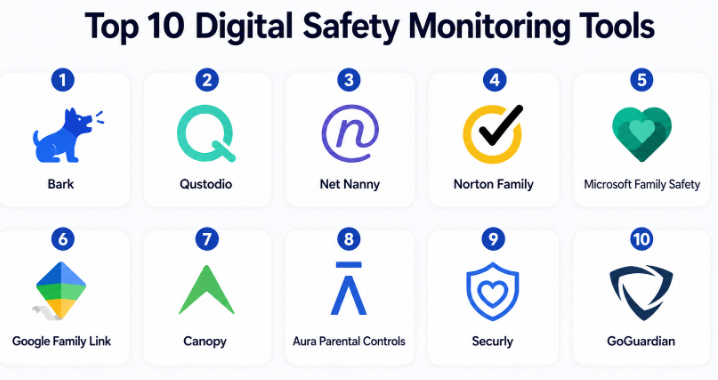
Top 10 Digital Safety Monitoring Tools
#1 — Bark
Short description :
Bark is a digital safety monitoring tool designed mainly for families that want alerts about online risks without reading every message manually. It monitors supported platforms for issues such as cyberbullying, self-harm signals, explicit content, online predators, and risky conversations. Bark also includes screen-time controls, web filtering, app management, and location features depending on plan and device setup. It is useful for parents who want a balance between safety monitoring and giving children some privacy. Bark is a strong option for families focused on message and social risk alerts.
Key Features
- Monitoring for supported messages, email, and social platforms
- Alerts for cyberbullying, self-harm, violence, and explicit content
- Screen-time management
- Web filtering and app controls
- Location tracking and check-ins
- Parent dashboard
- Activity alerts and safety reports
Pros
- Strong focus on risk-based alerts
- Helps parents avoid constant manual checking
- Useful for social and messaging safety monitoring
Cons
- Platform coverage may vary by device and app
- Setup can require account connections and permissions
- Parents should explain monitoring clearly to children
Platforms / Deployment
Web / iOS / Android / Windows / macOS / ChromeOS support may vary by feature
Cloud-based monitoring and app-based deployment
Security & Compliance
Digital safety tools process sensitive child and family data. Buyers should verify encryption, data retention, access controls, parental consent, and privacy practices directly.
Not publicly stated here for every feature.
Integrations & Ecosystem
Bark works best as a family safety layer across devices and supported online services.
- Mobile device monitoring
- Social and messaging monitoring where supported
- Email monitoring
- Web filtering
- Screen-time controls
- Location safety workflows
Support & Community
Bark provides family-focused support resources and guidance. It is best for parents who want alerts for serious risks rather than only website blocking.
#2 — Qustodio
Short description :
Qustodio is a parental control and digital wellbeing tool designed to help families monitor device usage, manage screen time, block inappropriate content, and understand online activity. It offers web filtering, app blocking, activity reports, location tracking, and time limits across supported devices. Qustodio is useful for parents who want structured control over daily device usage and safer browsing. It is especially practical for families with multiple children and multiple devices. Qustodio is a strong option when screen-time management and web filtering are top priorities.
Key Features
- Web filtering and safe browsing controls
- Screen-time schedules and daily limits
- App blocking and usage visibility
- Activity reports
- Location tracking
- Parent dashboard
- Multi-child and multi-device management
Pros
- Strong screen-time and web filtering features
- Good family dashboard experience
- Useful across multiple devices
Cons
- Some features vary by operating system
- Advanced social monitoring may be limited compared with risk-alert tools
- Children may need guidance to understand rules
Platforms / Deployment
Web / Windows / macOS / Android / iOS / Chromebook support may vary
Cloud and app-based deployment
Security & Compliance
Family monitoring involves sensitive child and device data. Buyers should verify privacy controls, data retention, encryption, and account security directly.
Not publicly stated here for every use case.
Integrations & Ecosystem
Qustodio fits family digital safety and device management workflows.
- Device usage monitoring
- Web content filtering
- App usage controls
- Location tracking
- Activity reporting
- Parent dashboard workflows
Support & Community
Qustodio provides support resources for families. It is especially useful for parents who want simple visibility and structured device limits.
#3 — Net Nanny
Short description :
Net Nanny is a parental control and web filtering tool focused on helping families protect children from inappropriate online content and manage screen time. It provides content filtering, website blocking, app management, internet time limits, and parent dashboard features. Net Nanny is useful for families that want stronger web protection and category-based filtering. It can help parents create safer browsing environments and reduce exposure to adult or harmful content. Net Nanny is a practical option when web filtering is more important than deep social media monitoring.
Key Features
- Web filtering and category-based blocking
- Screen-time management
- App blocking and controls
- Parent dashboard
- Internet usage reports
- Alerts for blocked or risky content
- Multi-device family protection
Pros
- Strong focus on web filtering
- Useful for safer browsing controls
- Good fit for families with younger children
Cons
- Social platform monitoring may be limited
- Some features vary by device type
- Setup and tuning may require time
Platforms / Deployment
Web / Windows / macOS / Android / iOS support may vary
Cloud and app-based deployment
Security & Compliance
Web filtering and parental control tools process browsing and device data. Buyers should verify privacy, data retention, access controls, and security practices directly.
Not publicly stated here for every feature.
Integrations & Ecosystem
Net Nanny works best as a family web safety and device control layer.
- Web filtering
- App controls
- Screen-time rules
- Parent reporting
- Device-level safety
- Content blocking workflows
Support & Community
Net Nanny provides family-focused support and setup guidance. It is useful for parents who want strong web filtering and daily usage controls.
#4 — Norton Family
Short description :
Norton Family is a parental control tool designed to help parents supervise children’s online activity, set screen-time limits, block unsuitable websites, and view activity reports. It is useful for families already familiar with Norton security products or those wanting a broader family safety setup. Norton Family can help parents understand browsing habits, manage school-time rules, and guide healthier digital behavior. It is especially useful for families that want basic monitoring and controls in a security-brand ecosystem. Norton Family is a practical option for web supervision and screen-time management.
Key Features
- Web supervision and content filtering
- Screen-time limits
- Search activity visibility
- School-time controls
- Activity reports
- Parent portal
- Location supervision features may vary
Pros
- Good fit for basic family supervision
- Useful web and time management features
- Familiar brand ecosystem for many users
Cons
- Advanced social media monitoring may be limited
- Feature availability can vary by device
- Not ideal for school-wide monitoring needs
Platforms / Deployment
Web / Windows / Android / iOS support may vary
Cloud and app-based deployment
Security & Compliance
Parental controls involve sensitive family and child data. Buyers should verify privacy, retention, encryption, and account security directly.
Not publicly stated here for every feature.
Integrations & Ecosystem
Norton Family fits family device supervision and online safety workflows.
- Web browsing supervision
- Search monitoring
- Screen-time controls
- Parent dashboard
- Family device management
- Security ecosystem workflows
Support & Community
Norton provides support resources through its broader consumer security ecosystem. It is useful for families needing a recognizable parental control tool.
#5 — Microsoft Family Safety
Short description :
Microsoft Family Safety helps families manage screen time, app limits, content filters, family location sharing, and activity reports across Microsoft-connected devices and services. It is especially useful for families using Windows PCs, Xbox, Microsoft accounts, and Microsoft ecosystem products. The tool supports digital wellbeing by helping parents set healthy limits and review activity. It is a practical option for families that want built-in controls without adding many separate tools. Microsoft Family Safety is best when the family already uses Microsoft accounts and devices.
Key Features
- Screen-time limits
- App and game limits
- Web and search filtering
- Activity reports
- Family location sharing
- Microsoft account-based controls
- Xbox and Windows ecosystem support
Pros
- Good fit for Microsoft ecosystem families
- Useful for Windows and Xbox screen-time control
- No need for heavy third-party setup in many cases
Cons
- Best value comes inside Microsoft ecosystem
- Limited for non-Microsoft platforms and some apps
- Not a deep social risk monitoring tool
Platforms / Deployment
Web / Windows / Xbox / Android / iOS support may vary
Cloud and account-based deployment
Security & Compliance
Family safety features rely on Microsoft account and device settings. Buyers should verify privacy, data usage, parental controls, and account security directly.
Not publicly stated here for every use case.
Integrations & Ecosystem
Microsoft Family Safety works best across Microsoft devices and services.
- Windows device controls
- Xbox gaming limits
- Microsoft Edge filtering
- Family location sharing
- App and game usage
- Microsoft account family group
Support & Community
Microsoft provides documentation and support resources. It is best for families already using Microsoft devices and accounts.
#6 — Google Family Link
Short description :
Google Family Link is a parental control tool that helps parents manage children’s Google accounts, Android devices, app downloads, screen time, and content settings. It is especially useful for families using Android phones, tablets, Chromebooks, and Google services. Parents can approve apps, set device limits, review activity, manage bedtime, and use location features. Google Family Link is practical for younger children who use Google-managed devices. It is not a full social monitoring tool, but it is useful for device control and app supervision.
Key Features
- Child Google account supervision
- App approval and blocking
- Screen-time limits
- Bedtime controls
- Device location visibility
- Content settings and safe browsing controls
- Activity management for supported services
Pros
- Strong fit for Android and Google ecosystem families
- Useful app approval and screen-time controls
- No complex setup for Google-managed devices
Cons
- Limited outside supported Google and Android environments
- Not designed for deep message or social media monitoring
- Some controls change as children age
Platforms / Deployment
Web / Android / iOS parent app / Chromebook support may vary
Cloud and account-based deployment
Security & Compliance
Family Link involves child account supervision and device data. Buyers should review privacy settings, account controls, data handling, and parental consent details directly.
Not publicly stated here for every feature.
Integrations & Ecosystem
Google Family Link works best across Google accounts and Android-based devices.
- Android device supervision
- Google account management
- App approval workflows
- Chromebook controls
- Location tracking
- Screen-time rules
Support & Community
Google provides documentation and support resources. It is best for families that rely on Android, Chromebook, and Google accounts.
#7 — Canopy
Short description :
Canopy is a digital safety and parental control tool focused on blocking explicit content, managing screen time, and supporting safer device use. It is especially known for real-time filtering of inappropriate visual content and web access controls. Canopy is useful for families that want stronger protection against explicit content exposure rather than only general website blocking. It can also support app management and device controls depending on setup. Canopy is a strong option for parents focused on visual content safety and healthier online habits.
Key Features
- Explicit content filtering
- Real-time visual content protection
- Web filtering and blocking
- Screen-time management
- App management
- Parent dashboard
- Device-level safety controls
Pros
- Strong focus on explicit content protection
- Useful for visual content filtering
- Good fit for families prioritizing content safety
Cons
- Feature availability can vary by device
- Not mainly a school monitoring platform
- Parents should test filtering behavior before relying fully
Platforms / Deployment
Web / Android / iOS / Windows / macOS support may vary
Cloud and app-based deployment
Security & Compliance
Canopy may process browsing and content-related data to support filtering. Buyers should verify privacy, data handling, retention, and security controls directly.
Not publicly stated here for every use case.
Integrations & Ecosystem
Canopy fits family content filtering and device safety workflows.
- Visual content filtering
- Web protection
- App management
- Screen-time controls
- Parent dashboard
- Device safety rules
Support & Community
Canopy provides support resources for families. It is especially useful for parents focused on reducing exposure to explicit content.
#8 — Aura Parental Controls
Short description :
Aura Parental Controls are part of Aura’s broader family safety and digital protection offerings. The parental control features help families manage screen time, block websites, track location, and monitor digital habits. Aura may also appeal to families that want digital safety alongside identity protection, online privacy, and security-related tools. It is useful for parents who want a broader family digital protection package rather than only a standalone parental control app. Aura is a practical option for families thinking about safety, privacy, identity, and device supervision together.
Key Features
- Screen-time management
- Website blocking
- App usage visibility
- Location tracking
- Family safety dashboard
- Broader digital protection options
- Alerts and activity insights
Pros
- Useful broader family protection approach
- Combines parental controls with digital safety themes
- Good fit for families wanting more than device limits
Cons
- Parental controls may not be as deep as specialist monitoring tools
- Feature availability depends on plan and device
- Buyers should validate exact monitoring capabilities
Platforms / Deployment
Web / iOS / Android support may vary
Cloud and app-based deployment
Security & Compliance
Family digital safety tools may process device, location, and browsing-related data. Buyers should verify privacy, data retention, account security, and protection controls directly.
Not publicly stated here for every feature.
Integrations & Ecosystem
Aura fits families that want a broader digital safety ecosystem.
- Parental controls
- Location safety
- Identity protection workflows
- Web blocking
- Device activity visibility
- Family dashboard
Support & Community
Aura provides consumer support resources. It is best for families that want parental controls together with broader digital protection services.
#9 — Securly
Short description :
Securly is a student safety and school-focused digital monitoring platform designed for education environments. It helps schools filter web content, monitor student activity, detect safety risks, and support student wellbeing. Securly is useful for school districts managing student devices, classroom technology, and online learning environments. It can help detect concerning searches, harmful content, and student safety signals. Securly is a strong option for education teams that need digital safety monitoring across managed school devices and accounts.
Key Features
- Web filtering for schools
- Student activity monitoring
- Safety alerts for concerning behavior
- Classroom device visibility
- Admin dashboards
- Parent communication options depending on setup
- School-managed device support
Pros
- Strong fit for schools and districts
- Supports student safety monitoring
- Useful for managed education environments
Cons
- Not designed mainly for individual family use
- Requires school deployment and policy planning
- Privacy and student data rules must be reviewed carefully
Platforms / Deployment
Web / ChromeOS / Windows / macOS / iOS / Android support may vary
Cloud-based school deployment
Security & Compliance
School monitoring involves student data and sensitive activity signals. Education buyers should verify data privacy, retention, access controls, student privacy compliance, and security practices directly.
Not publicly stated here for every deployment.
Integrations & Ecosystem
Securly fits education technology and student safety workflows.
- School web filtering
- Student device monitoring
- Classroom management workflows
- Safety alerts
- Admin reporting
- Parent communication workflows
Support & Community
Securly provides school-focused support and onboarding resources. It is best for education institutions needing student safety and web filtering at scale.
#10 — GoGuardian
Short description :
GoGuardian is an education-focused digital learning and student safety platform used by schools to manage student devices, filter web content, monitor online activity, and support safer digital classrooms. It is commonly associated with school-managed devices and classroom visibility. GoGuardian can help teachers and administrators guide online learning, block inappropriate content, and detect student safety concerns. It is useful for districts that need web filtering, classroom management, and student safety monitoring in one ecosystem. GoGuardian is best suited for schools rather than home-only parental control use.
Key Features
- School web filtering
- Student device monitoring
- Classroom management tools
- Safety alerts and risk detection
- Admin and teacher dashboards
- Activity visibility for managed devices
- Education-focused reporting
Pros
- Strong fit for schools and classrooms
- Combines filtering, monitoring, and classroom tools
- Useful for managed student devices
Cons
- Not ideal for individual family use only
- Requires school policies and admin setup
- Student privacy review is important
Platforms / Deployment
Web / ChromeOS / Windows / macOS / iOS support may vary
Cloud-based school deployment
Security & Compliance
Student monitoring involves sensitive education data. Schools should verify privacy protections, access permissions, retention practices, security controls, and compliance requirements directly.
Not publicly stated here for every deployment.
Integrations & Ecosystem
GoGuardian works best in school technology environments.
- Managed student devices
- Classroom monitoring
- Web filtering
- Admin dashboards
- Safety alerts
- Education reporting workflows
Support & Community
GoGuardian provides education-focused support and onboarding resources. It is best for districts and schools managing student safety across digital learning environments.
Comparison Table Top 10
| Tool Name | Best For | Platform(s) Supported | Deployment | Standout Feature | Public Rating |
|---|---|---|---|---|---|
| Bark | Family risk alerts across messages and online activity | Web, iOS, Android, desktop support varies | Cloud / app-based | Alerts for cyberbullying, self-harm, and risky content | N/A |
| Qustodio | Family screen-time and web filtering | Web, Windows, macOS, Android, iOS, Chromebook support varies | Cloud / app-based | Strong screen-time and activity controls | N/A |
| Net Nanny | Web filtering and parental controls | Web, Windows, macOS, Android, iOS support varies | Cloud / app-based | Real-time web content filtering | N/A |
| Norton Family | Family web supervision and screen-time control | Web, Windows, Android, iOS support varies | Cloud / app-based | Web supervision and school-time controls | N/A |
| Microsoft Family Safety | Microsoft ecosystem family safety | Web, Windows, Xbox, Android, iOS support varies | Cloud / account-based | Windows and Xbox family controls | N/A |
| Google Family Link | Android and Google account supervision | Web, Android, iOS parent app, Chromebook support varies | Cloud / account-based | App approvals and child account supervision | N/A |
| Canopy | Explicit content and visual filtering | Web, Android, iOS, Windows, macOS support varies | Cloud / app-based | Real-time explicit content protection | N/A |
| Aura Parental Controls | Family digital safety with broader protection | Web, iOS, Android support varies | Cloud / app-based | Parental controls plus broader digital protection | N/A |
| Securly | School student safety and web filtering | Web, ChromeOS, desktop and mobile support varies | Cloud school deployment | Student safety alerts and school filtering | N/A |
| GoGuardian | School device monitoring and classroom safety | Web, ChromeOS, desktop and mobile support varies | Cloud school deployment | Classroom management and student safety monitoring | N/A |
Evaluation & Digital Safety Monitoring Tools
| Tool Name | Core 25% | Ease 15% | Integrations 15% | Security 10% | Performance 10% | Support 10% | Value 15% | Weighted Total 0–10 |
|---|---|---|---|---|---|---|---|---|
| Bark | 9.0 | 8.2 | 8.0 | 8.0 | 8.5 | 8.3 | 8.2 | 8.38 |
| Qustodio | 8.5 | 8.5 | 7.8 | 8.0 | 8.5 | 8.0 | 8.3 | 8.25 |
| Net Nanny | 8.2 | 8.0 | 7.5 | 7.8 | 8.3 | 8.0 | 8.0 | 7.98 |
| Norton Family | 7.8 | 8.2 | 7.5 | 8.0 | 8.2 | 8.0 | 8.2 | 7.97 |
| Microsoft Family Safety | 7.8 | 8.5 | 8.0 | 8.3 | 8.4 | 8.0 | 8.7 | 8.22 |
| Google Family Link | 8.0 | 8.7 | 8.2 | 8.3 | 8.5 | 8.0 | 8.8 | 8.35 |
| Canopy | 8.4 | 8.0 | 7.5 | 8.0 | 8.4 | 8.0 | 8.0 | 8.04 |
| Aura Parental Controls | 7.8 | 8.2 | 7.5 | 8.2 | 8.2 | 8.0 | 8.0 | 7.97 |
| Securly | 9.0 | 7.8 | 8.5 | 8.5 | 8.7 | 8.5 | 8.0 | 8.49 |
| GoGuardian | 9.0 | 7.8 | 8.5 | 8.5 | 8.7 | 8.5 | 8.0 | 8.49 |
These scores are comparative and should be used as a starting point. Families may rate Bark, Qustodio, Google Family Link, Microsoft Family Safety, Net Nanny, or Canopy higher depending on device mix and monitoring style. Schools may rate Securly or GoGuardian higher because classroom visibility, student safety alerts, and managed-device controls matter more. The right choice depends on whether the priority is home safety, school monitoring, screen-time balance, web filtering, or risk alerts.
Which Digital Safety Monitoring Tool Should You Choose?
Solo / Individual Guardian
An individual guardian should start with the child’s device type and risk level. For younger children using Android or Chromebook devices, Google Family Link can be a practical starting point. For Windows or Xbox-heavy homes, Microsoft Family Safety may work well.
If the guardian wants stronger alerts for risky messages or online behavior, Bark may be more suitable. If the main goal is screen-time and web filtering, Qustodio or Net Nanny can be useful.
Small Family
Families with multiple children and devices should focus on ease of setup, dashboard clarity, device coverage, and screen-time controls. Qustodio, Bark, Canopy, Google Family Link, and Microsoft Family Safety are good options to compare.
The best choice depends on whether the family wants monitoring alerts, content filtering, device scheduling, app blocking, location tracking, or a mix of all these.
School or Small Education Program
Small schools and education programs need web filtering, student activity visibility, classroom controls, and safety alerts. Securly and GoGuardian are stronger choices for education settings than typical home parental control apps.
Schools should also create clear policies for student privacy, parent communication, device use, and administrator access before rollout.
District / Large Education Environment
Large school districts need scalable deployment, admin dashboards, safety alerts, reporting, device management compatibility, and privacy controls. Securly and GoGuardian are strong platforms to evaluate.
District buyers should involve IT, school leadership, student safety teams, legal, privacy officers, teachers, and parent communication teams before choosing a tool.
Budget vs Premium
Budget-focused families may start with built-in tools like Google Family Link or Microsoft Family Safety, especially if they already use Google, Android, Windows, or Xbox ecosystems.
Premium tools are worth considering when families need stronger cross-platform controls, message risk alerts, explicit content filtering, or more detailed activity reporting.
Feature Depth vs Ease of Use
Google Family Link and Microsoft Family Safety are easier for users already in those ecosystems. Bark is stronger for risk alerts. Qustodio is strong for screen-time and app controls. Net Nanny and Canopy are strong for content filtering. Securly and GoGuardian are stronger for schools.
The best tool is not the one with the longest feature list. It is the one that matches the user’s real safety concern and is easy to manage consistently.
Integrations & Scalability
Digital safety tools may need to work with operating systems, browsers, school accounts, identity systems, device management tools, classroom platforms, email accounts, and mobile apps. Integration quality affects visibility and control.
Scalability matters more for schools and districts because they need centralized policies, admin roles, reports, alerts, and support for many users and devices.
Security & Compliance Needs
Digital safety tools may process sensitive information such as browsing activity, messages, searches, location, device usage, and risk alerts. Buyers should review encryption, data retention, access controls, parent or admin permissions, privacy policy, and consent requirements.
Schools should be especially careful with student privacy, role-based access, data sharing, retention periods, and compliance obligations.
Frequently Asked Questions FAQs
1. What are Digital Safety Monitoring Tools?
Digital Safety Monitoring Tools help parents, schools, and guardians monitor online activity, manage screen time, block unsafe content, receive risk alerts, and support safer digital behavior.
2. How are these tools different from antivirus software?
Antivirus software protects devices from malware and security threats. Digital safety monitoring tools focus on user behavior, screen time, web filtering, harmful content, online risks, and child or student safety.
3. What features should parents look for first?
Parents should look for web filtering, app controls, screen-time limits, activity reports, alerts for risky behavior, location options, and device compatibility. The right tool depends on the child’s age and device usage.
4. What features should schools look for first?
Schools should look for web filtering, student activity monitoring, safety alerts, classroom visibility, admin dashboards, reporting, managed-device support, and privacy controls. Student data protection should be reviewed carefully.
5. Can these tools detect cyberbullying?
Some tools can detect signals related to cyberbullying, threats, or harmful language in supported platforms. Bark is especially known for alert-style monitoring, while school tools may detect concerning searches or activity patterns.
6. Can digital safety tools monitor social media?
Some tools support monitoring for certain social platforms, but coverage varies by device, platform rules, account permissions, and operating system restrictions. Buyers should validate exact platform support before purchase.
7. Do these tools block inappropriate websites?
Yes, many digital safety tools include web filtering or category-based blocking. Qustodio, Net Nanny, Canopy, Norton Family, Securly, and GoGuardian are examples of tools with web filtering use cases.
8. Are digital safety tools safe for children’s privacy?
They can be, if used responsibly and configured carefully. Parents and schools should avoid excessive monitoring, explain rules clearly, limit who can access data, and choose tools with strong privacy controls.
9. What are common mistakes when choosing these tools?
Common mistakes include choosing only by price, not checking device support, ignoring privacy, relying only on monitoring instead of communication, not testing alerts, and using tools without clear family or school rules.
10. Which tool is best for home use?
For home use, Bark, Qustodio, Net Nanny, Canopy, Google Family Link, Microsoft Family Safety, Norton Family, and Aura are good tools to compare. The best choice depends on devices, child age, and safety priorities.
Conclusion
Digital Safety Monitoring Tools help families and schools create safer online experiences by combining web filtering, screen-time controls, app management, activity reports, location features, student safety alerts, and risk monitoring. The best tool depends on the user environment. Bark is strong for family risk alerts and message-related safety concerns. Qustodio, Net Nanny, Canopy, Norton Family, Google Family Link, Microsoft Family Safety, and Aura are useful for home-based digital safety. Securly and GoGuardian are stronger for schools, districts, and managed education environments.
