Introduction
Screen Capture Tools are software solutions designed to quickly capture screenshots, annotate visuals, and share them across teams or platforms. Unlike full screen recording software, these tools focus on static image capture, though many also include lightweight recording, GIF creation, and instant sharing capabilities.
As remote work, async communication, and documentation workflows grow, screen capture tools have become essential for bug reporting, tutorials, design feedback, and knowledge sharing. Modern tools now include cloud storage, annotation layers, OCR (text recognition), and integrations with productivity platforms.
Common Use Cases
- Bug reporting: Capture and annotate issues for developers
- Documentation: Create step-by-step visual guides
- Design feedback: Share visual comments with teams
- Customer support: Provide quick visual instructions
- Content creation: Social media snippets and visuals
What Buyers Should Evaluate
- Screenshot capture modes (full screen, window, region, scrolling)
- Annotation tools (arrows, text, blur, highlights)
- Sharing options (links, cloud, export formats)
- OCR and text extraction
- Performance and speed
- Integration with productivity tools
- Cross-platform support
- Collaboration features
- Security and privacy controls
- Pricing and licensing model
Best for: Developers, designers, marketers, support teams, educators, and remote teams who need fast visual communication and documentation.
Not ideal for: Users needing full video production or complex editing. Screen recording software or video editors may be more suitable.
Key Trends in Screen Capture Tools
- Cloud-first sharing: Instant links and team collaboration
- AI-powered OCR: Extracting text from images automatically
- Annotation enhancements: Smart highlights and auto-blur for sensitive data
- Integrated workflows: Linking captures to project management tools
- Lightweight performance: Minimal system resource usage
- Cross-device support: Desktop, browser, and mobile apps
- GIF creation: Quick visual demonstrations
- Secure sharing: Password-protected links and access control
- Automation features: Scheduled captures and workflows
- Freemium models: Free tiers with advanced premium features
How We Selected These Tools (Methodology)
The tools in this list were selected based on:
- Popularity among professionals and teams
- Speed and reliability of capture functionality
- Annotation and editing capabilities
- Ease of sharing and collaboration
- Integration with productivity ecosystems
- Cross-platform compatibility
- Performance and resource usage
- Documentation and support quality
- Pricing flexibility and value
- Suitability for different use cases
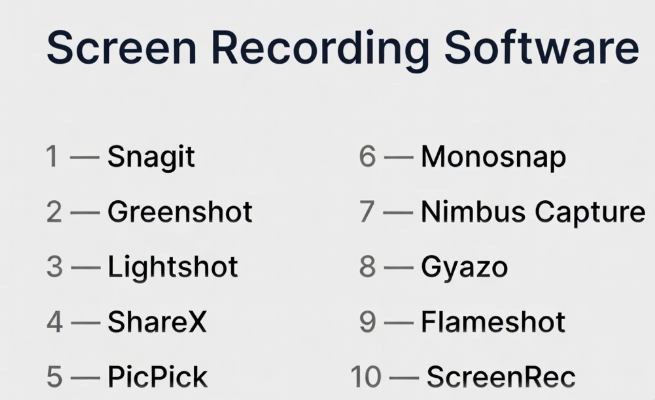
Top 10 Screen Capture Tools
#1 — Snagit
Short description: A premium screen capture tool known for powerful annotation and easy content creation workflows.
Key Features
- Advanced screenshot capture
- Annotation tools (text, arrows, blur)
- Scrolling capture
- Templates
- Basic video capture
- Cloud sharing
- OCR support
Pros
- Easy to use
- Strong annotation features
- Great for documentation
Cons
- Paid software
- Limited advanced video features
- Desktop-focused
Platforms / Deployment
Windows / macOS
Security & Compliance
Not publicly stated
Integrations & Ecosystem
Snagit integrates well with productivity workflows and sharing platforms.
- Cloud storage tools
- Collaboration apps
- Export formats
Support & Community
Strong support resources and tutorials.
#2 — Greenshot
Short description: A lightweight and free screen capture tool popular for quick screenshots and annotations.
Key Features
- Region and window capture
- Annotation tools
- Quick export options
- Keyboard shortcuts
- Lightweight performance
- Basic editing
- Open-source
Pros
- Free and lightweight
- Fast performance
- Easy to use
Cons
- Limited advanced features
- Windows-focused
- Minimal updates
Platforms / Deployment
Windows / macOS (limited)
Security & Compliance
Not publicly stated
Integrations & Ecosystem
- File export
- Basic integrations
- Clipboard tools
Support & Community
Active open-source community.
#3 — Lightshot
Short description: A simple and fast screenshot tool designed for quick capture and instant sharing.
Key Features
- Region capture
- Instant sharing
- Annotation tools
- Search similar images
- Quick editing
- Lightweight
- Cross-platform support
Pros
- Very easy to use
- Fast sharing
- Lightweight
Cons
- Limited features
- Privacy concerns for cloud uploads
- Basic editing tools
Platforms / Deployment
Windows / macOS
Security & Compliance
Not publicly stated
Integrations & Ecosystem
- Cloud sharing
- Image search
- Export tools
Support & Community
Moderate user base.
#4 — ShareX
Short description: A powerful open-source screen capture tool with automation and advanced workflows.
Key Features
- Screenshot and GIF capture
- Workflow automation
- Customizable hotkeys
- OCR support
- File sharing
- Scrolling capture
- Plugin support
Pros
- Free and feature-rich
- Highly customizable
- Strong automation
Cons
- Complex interface
- Windows only
- Learning curve
Platforms / Deployment
Windows
Security & Compliance
Not publicly stated
Integrations & Ecosystem
- Cloud storage
- Automation tools
- Plugins
Support & Community
Strong open-source community.
#5 — PicPick
Short description: A screen capture tool with built-in design and measurement utilities.
Key Features
- Screenshot capture
- Annotation tools
- Color picker
- Pixel ruler
- Image editor
- Scrolling capture
- Export options
Pros
- Multiple design tools
- Easy to use
- Lightweight
Cons
- Windows only
- Limited collaboration features
- Basic cloud options
Platforms / Deployment
Windows
Security & Compliance
Not publicly stated
Integrations & Ecosystem
- Design tools
- Export formats
- Image editing
Support & Community
Moderate community support.
#6 — Monosnap
Short description: A screen capture and sharing tool focused on productivity and quick collaboration.
Key Features
- Screenshot capture
- Annotation tools
- Cloud storage
- Screen recording
- File sharing
- Blur and highlight tools
- Export options
Pros
- Easy sharing
- Clean interface
- Cross-platform
Cons
- Limited advanced features
- Subscription model
- Smaller ecosystem
Platforms / Deployment
Windows / macOS
Security & Compliance
Not publicly stated
Integrations & Ecosystem
- Cloud storage
- Sharing tools
- Productivity apps
Support & Community
Growing user base.
#7 — Nimbus Capture
Short description: A browser-based and desktop tool for capturing screenshots and creating annotated visuals.
Key Features
- Screenshot capture
- Annotation tools
- Scrolling capture
- Cloud storage
- Screen recording
- Collaboration features
- Export options
Pros
- Browser extension support
- Good collaboration features
- Easy to use
Cons
- Limited advanced editing
- Subscription required for full features
- Performance issues on large captures
Platforms / Deployment
Web / Windows / macOS
Security & Compliance
Not publicly stated
Integrations & Ecosystem
- Browser extensions
- Cloud tools
- Productivity apps
Support & Community
Moderate support.
#8 — Gyazo
Short description: A simple screen capture tool focused on instant sharing and cloud-based image storage.
Key Features
- Instant screenshot capture
- Cloud storage
- Shareable links
- GIF capture
- Basic annotation
- History tracking
- Cross-platform support
Pros
- Very fast workflow
- Easy sharing
- Cloud storage
Cons
- Limited editing tools
- Subscription for advanced features
- Privacy considerations
Platforms / Deployment
Windows / macOS
Security & Compliance
Not publicly stated
Integrations & Ecosystem
- Cloud storage
- Sharing tools
- Export formats
Support & Community
Moderate community support.
#9 — Flameshot
Short description: An open-source screenshot tool with powerful annotation and customization features.
Key Features
- Screenshot capture
- Annotation tools
- Customizable interface
- Keyboard shortcuts
- Open-source
- Lightweight
- Cross-platform
Pros
- Free and open-source
- Highly customizable
- Strong annotation tools
Cons
- Limited cloud features
- No built-in sharing
- Smaller ecosystem
Platforms / Deployment
Windows / macOS / Linux
Security & Compliance
Not publicly stated
Integrations & Ecosystem
- Open-source tools
- Export formats
- Local workflows
Support & Community
Active open-source community.
#10 — ScreenRec
Short description: A lightweight tool combining screen capture with instant sharing and secure links.
Key Features
- Screenshot capture
- Instant sharing
- Secure links
- Screen recording
- Lightweight performance
- Cloud storage
- No watermarks
Pros
- Fast and simple
- Secure sharing
- Free usage
Cons
- Limited editing features
- Basic functionality
- Smaller ecosystem
Platforms / Deployment
Windows / macOS / Linux
Security & Compliance
Not publicly stated
Integrations & Ecosystem
- Cloud storage
- Sharing tools
- Recording workflows
Support & Community
Growing user base.
Comparison Table (Top 10)
| Tool Name | Best For | Platform(s) Supported | Deployment | Standout Feature | Public Rating |
|---|---|---|---|---|---|
| Snagit | Documentation | Windows, macOS | Local | Annotation tools | N/A |
| Greenshot | Quick capture | Windows, macOS | Local | Lightweight | N/A |
| Lightshot | Fast sharing | Windows, macOS | Cloud/Local | Instant links | N/A |
| ShareX | Power users | Windows | Local | Automation | N/A |
| PicPick | Designers | Windows | Local | Design tools | N/A |
| Monosnap | Teams | Windows, macOS | Cloud/Local | Sharing | N/A |
| Nimbus Capture | Browser users | Web, Windows, macOS | Cloud | Extensions | N/A |
| Gyazo | Quick sharing | Windows, macOS | Cloud | Instant upload | N/A |
| Flameshot | Open-source users | Windows, macOS, Linux | Local | Customization | N/A |
| ScreenRec | Secure sharing | Windows, macOS, Linux | Cloud/Local | Secure links | N/A |
Evaluation & Scoring of Screen Capture Tools
| Tool Name | Core | Ease | Integrations | Security | Performance | Support | Value | Weighted Total |
|---|---|---|---|---|---|---|---|---|
| Snagit | 9 | 9 | 7 | 6 | 8 | 9 | 7 | 8.2 |
| Greenshot | 7 | 9 | 6 | 5 | 8 | 7 | 10 | 7.9 |
| Lightshot | 7 | 10 | 6 | 5 | 8 | 7 | 9 | 7.9 |
| ShareX | 9 | 6 | 8 | 6 | 8 | 8 | 10 | 8.4 |
| PicPick | 8 | 8 | 6 | 5 | 8 | 7 | 8 | 7.7 |
| Monosnap | 8 | 9 | 7 | 6 | 7 | 7 | 8 | 7.9 |
| Nimbus Capture | 8 | 8 | 7 | 6 | 7 | 7 | 8 | 7.8 |
| Gyazo | 7 | 10 | 6 | 5 | 7 | 7 | 8 | 7.8 |
| Flameshot | 8 | 8 | 6 | 5 | 8 | 7 | 10 | 8.0 |
| ScreenRec | 7 | 9 | 6 | 6 | 7 | 7 | 9 | 7.9 |
How to interpret the scores:
- Scores are relative comparisons, not absolute performance guarantees
- Tools with advanced workflows score higher in core features
- Simpler tools score higher in ease of use and value
- Choose based on your daily workflow needs
Which Screen Capture Tool Is Right for You?
Solo / Freelancer
- Best: Lightshot, Greenshot, Flameshot
- Focus on simplicity and speed
SMB
- Best: Snagit, Monosnap
- Balance features and usability
Mid-Market
- Best: ShareX, Nimbus Capture
- Need automation and collaboration
Enterprise
- Best: Snagit
- Focus on documentation and workflows
Budget vs Premium
- Budget: Greenshot, Flameshot
- Premium: Snagit
Feature Depth vs Ease of Use
- Deep: ShareX
- Easy: Lightshot, Gyazo
Integrations & Scalability
- Strong: ShareX, Nimbus Capture
- Flexible: Monosnap
Security & Compliance Needs
- Most tools: Not publicly stated
- Enterprises should validate internally
Frequently Asked Questions (FAQs)
What is a screen capture tool?
It allows users to take screenshots and annotate them.
Are these tools free?
Some are free, while others offer paid plans.
Can I edit screenshots?
Yes, most tools include annotation features.
What is scrolling capture?
Capturing long web pages beyond visible screen.
Can I share screenshots instantly?
Many tools offer instant sharing links.
Is OCR supported?
Some tools include text extraction features.
Do I need internet access?
Only for cloud sharing features.
Are these tools secure?
Security varies; check platform policies.
Can I record GIFs?
Some tools support GIF creation.
Which tool is best for teams?
Snagit and Monosnap are good options.
Conclusion
Screen capture tools are essential for fast, clear, and effective visual communication. Whether you’re documenting workflows, reporting bugs, or sharing ideas, the right tool can significantly improve productivity.
- Choose lightweight tools for quick tasks
- Choose feature-rich tools for advanced workflows
- Consider sharing and integration capabilities for teams
There is no single best tool—only the one that fits your workflow.